
Affiliate disclosure: As an Amazon Associate, Tech Rig Review earns from qualifying purchases. Links on this page may be affiliate links, at no extra cost to you.
Using two monitors with a laptop can make a big difference to your workspace — email on one screen, your main work on another, and the laptop display free for chat, music, or reference. It’s useful for remote work, spreadsheets, research, coding, trading, video editing, and more.
The good news: connecting two monitors is usually simple. The tricky part is choosing the right connection method. Some laptops have two video outputs. Others have only one HDMI port and a USB-C port. Some USB-C ports support video, while others are for charging and data only — and a simple USB-C hub may not support two separate external screens.
This guide covers how to connect 2 monitors to a laptop using the most common methods, plus docking stations and adapters available on Amazon, and what to check before buying.
Note: This is a research-based guide. I have not personally purchased or hands-on tested the products below. Recommendations are based on manufacturer information, technical specifications, and current/recent Amazon product data.
The Quick Answer: How Do You Connect 2 Monitors to a Laptop?

The best method depends on the ports and display support of your specific laptop.
| Method | How it works | Best when… |
|---|---|---|
| Two separate video outputs | HDMI → Monitor 1, USB-C/DisplayPort → Monitor 2, then choose “Extend these displays” | Your laptop already has two video-capable ports |
| USB-C docking station | One USB-C cable to the dock; both monitors connect to the dock | You want a clean, single-cable desk setup |
| DisplayPort MST | One DisplayPort connection carries multiple independent video streams via an MST hub or daisy-chain | Your laptop and monitors support DisplayPort Multi-Stream Transport |
| DisplayLink dock/adapter | Uses software + USB to create additional displays, rather than native video output | Your laptop doesn’t have enough native video outputs (works well for office use, less ideal for gaming/graphics work) |
Before You Buy Anything, Check Your Laptop

This is the most important step. Don’t buy a dual-monitor dock simply because it has two HDMI ports — your laptop also needs to support the required display technology.
Check the USB-C Port
USB-C does not automatically mean video output. A USB-C port may support only USB data or charging, or it may support DisplayPort Alt Mode, Thunderbolt, or USB4 — and only the latter group reliably drives external displays.
VESA explains that DisplayPort Alt Mode allows compatible USB-C notebook ports to carry DisplayPort video.
Look for wording such as:
- DisplayPort Alt Mode / DP Alt Mode
- Thunderbolt 3 / Thunderbolt 4
- USB4
- “USB-C with video output”
If your laptop’s USB-C port is data-only, a normal USB-C video dock may not work as expected.
Best Amazon Products for Connecting 2 Monitors to a Laptop

1. Anker 8-in-1 USB-C Dock — Best Simple Dual-HDMI Option
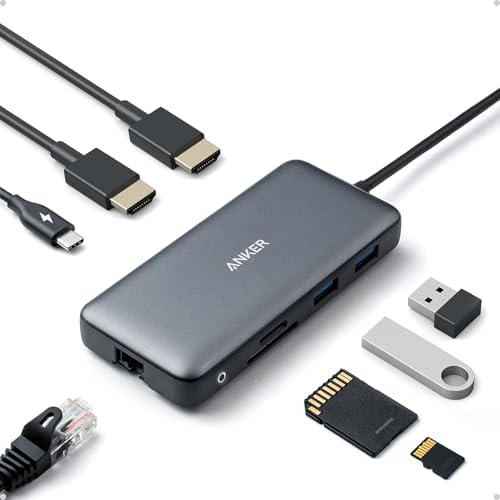
- The Anker Advantage: Join the 50 million+ powered by our leading technology.
- Massive Expansion: Equipped with a USB C PD-IN charging port, 2 USB-A data ports, 2 HDMI ports, an Ethernet port, and a …
- Dual HDMI Display: Stream or mirror content to a single device in stunning 4K@60Hz, or hook up two displays to both HDMI…
A simple choice for two HDMI outputs from a compatible USB-C laptop.
| Spec | Detail |
|---|---|
| Ports | 2× HDMI, Gigabit Ethernet, USB-A, SD/microSD card readers, USB-C Power Delivery input |
| Display support | 1 display up to 4K/60Hz, or 2 displays up to 4K/30Hz |
⚠️ If you want two 4K monitors at 60Hz, this dock likely isn’t the right choice — but for ordinary office work, documents, email, and spreadsheets, it’s practical.
Example setup: Monitor 1 → HDMI · Monitor 2 → HDMI · Keyboard/Mouse → USB · Ethernet → RJ45 · SD card → SD slot. Also supports USB-C Power Delivery pass-through.
Limitation: The laptop must support video over USB-C — a data-only USB-C port isn’t enough. Maximum configuration also depends on the laptop, OS, and available bandwidth.
Best for: Office work, remote work, students, spreadsheets, and general productivity.
2. UGREEN Revodok Pro 10-in-1 — Best Value Dual-HDMI Choice

- 10-in-1 USB C Docking Station: Inspire more potential of your laptop’s USB-C port with 2xHDMI ports, a 100W USB-C PD por…
- Dual 4k@60Hz/Single 8K@30Hz HDMI Docking Station: The Docking Station allows you to connect two displays up to 4K@60Hz o…
- High-Speed Data Transfer: Connecting keyboards, transfer files, movies, and photos at speeds up to 5Gbps via the USB-C d…
A stronger option if you want higher resolution across both external displays.
| Spec | Detail |
|---|---|
| Ports | 2× HDMI, USB data, Gigabit Ethernet, SD/TF card support, USB-C Power Delivery |
| Display support | Dual 4K displays at 60Hz |
Example setup: Laptop → USB-C → UGREEN dock → HDMI 1 (Monitor 1) + HDMI 2 (Monitor 2), plus other accessories connected to the dock.
Good for a home office: Leave the dock on your desk permanently — connect one USB-C cable when you sit down, and your monitors, keyboard, mouse, and network cable stay connected, cutting down on cable swapping.
Check compatibility first: As always, USB-C alone isn’t enough — confirm your laptop supports the required video mode before buying.
Best for: Home offices, remote workers, students, and users wanting dual 4K support from a compact USB-C dock.
3. AV Access 8K KVM Dock — Best for Two Computers and Two Monitors
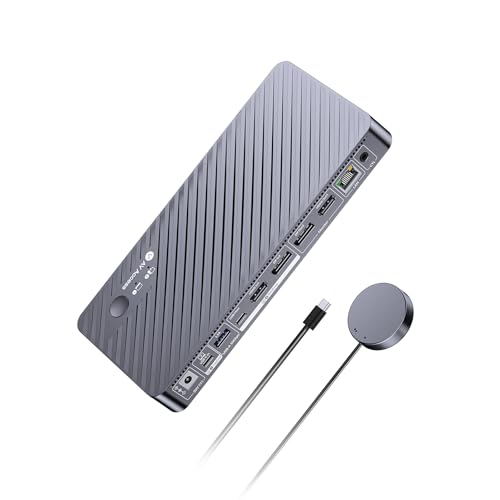
- 【One Setup for Two Computers & Two Monitors】Bring your USB C work laptop and desktop PC together in one shared dual-moni…
- 【8K Clarity or 480Hz Speed for Every Detail and Every Move】Choose the display performance that fits your setup. The desk…
- 【One USB C Cable for Dual Displays, Data & 100W Charging】Come back to your desk and connect your laptop with one full-fe…
For using two monitors across more than one computer.
| Spec | Detail |
|---|---|
| Ports | HDMI + DisplayPort outputs, USB ports, Ethernet, audio, SD support, USB-C charging |
| Supports | 2 computers, 2 monitors |
What makes a KVM dock different? A normal dock connects your laptop to monitors and accessories. A KVM dock lets you switch those shared monitors and peripherals between computers — e.g., a work laptop and a personal desktop sharing two monitors, one keyboard, and one mouse — without unplugging anything.
Example setup: Laptop → USB-C → KVM dock; Desktop → second computer input; Monitor 1 & 2 → dock; keyboard/mouse → dock.
Best for: Home offices, hybrid workers, developers, and people who regularly share two monitors between two computers. If you only own one laptop, a simpler dock is likely a better fit.
4. CalDigit TS4 — Best Premium Dock for a Powerful Laptop

- 18 Ports of Extreme Connectivity – Featuring an impressive 18 ports, the TS4 has enough connectivity for even the most d…
- Powerful 98W Charging – The TS4’s power delivery is ideal for any Thunderbolt or USB-C (with data, video, and power supp…
- Single 8K or Dual 6K 60Hz Displays – Windows users can connect a single monitor up to 8K resolution. macOS users can con…
A premium Thunderbolt 4 docking station — not the cheapest option, but built for far more than two displays.
| Spec | Detail |
|---|---|
| Ports | 18 total — Thunderbolt, USB, Ethernet, SD/microSD, audio |
| Charging | Up to 98W host charging |
Why consider it? It can become the central connection point for an entire workstation — displays, keyboard, mouse, Ethernet, storage, audio, SD cards, and other USB devices all route through one dock.
Monitor support: Especially relevant for Thunderbolt-capable laptops. The exact number and resolution of external monitors depends on the laptop, OS, graphics hardware, and connection method — check your laptop’s Thunderbolt and display specifications before ordering.
Best for: Thunderbolt laptops, professionals, creators, developers, and high-end home offices with multiple monitors, fast storage, wired networking, and other accessories.
5. Dell WD19 USB-C Dock — Best for Many Dell Business Laptops

- Ports: 1x USB-C 3.1 (Gen 2), 1x USB-A 3.1 (Gen 1 with PowerShare), 2x USB-A 3.1 (Gen 1), 1x combo Audio/ headset, 1x aud…
- Ports: 2x DisplayPort 1.4, 1x HDMI 2.0B, 1x USB-C Multifunction DisplayPort, 1x Gigabit Ethernet RJ45
- Power: power adapter 130 watt AC 120/230 V (50/60 Hz). docking interface: USB-C
A business-focused USB-C docking station.
| Spec | Detail |
|---|---|
| Power | 130W |
| Ports | USB-C, HDMI, dual DisplayPort outputs |
Dell’s official documentation details multi-monitor configurations for the WD19 — depending on connection mode and available bandwidth, it can support two external displays at different resolutions.
Why it’s useful: Dell business laptops are common in offices — if you already have a compatible one, a WD19-class dock gives you a convenient permanent desk setup.
Resolution note: Don’t assume every monitor combination runs at maximum resolution — Dell’s own documentation shows available resolution changes depending on DisplayPort data rate and which ports are used. This is normal for docking stations generally: laptop, dock, cables, monitors, graphics hardware, and connection standard all play a role.
Best for: Dell business laptops and office users wanting a traditional workstation dock.
Step-by-Step: How to Connect 2 Monitors to a Laptop

Step 1: Check Your Laptop Ports
Look at the sides of your laptop for HDMI, Mini DisplayPort, DisplayPort, USB-C, Thunderbolt, or USB-A. Write down what you have, then check your laptop’s manual or manufacturer specs to determine which ports can actually send video.
Step 2: Check the Monitor Inputs
Look at the back of both monitors — common inputs are HDMI, DisplayPort, USB-C, and Mini DisplayPort. The monitors don’t need matching connectors (e.g., Monitor 1 → HDMI, Monitor 2 → DisplayPort) — an appropriate adapter or cable can handle the connection when supported. DisplayPort notes that adapters can connect DisplayPort sources to HDMI and other display interfaces.
Step 3: Choose Your Connection Method
| If you have… | Use… |
|---|---|
| HDMI + USB-C video output on the laptop | Connect one monitor to each directly |
| A compatible USB-C port | A dual-monitor dock (usually the cleanest desk solution) |
| Thunderbolt support | A Thunderbolt dock for a powerful, flexible connection |
| Not enough native video outputs | DisplayLink |
Step 4: Connect the First Monitor
Connect it to the laptop or dock, turn it on, and select the correct input source (e.g., HDMI).
Step 5: Connect the Second Monitor
Repeat — connect and select the correct input. If using a dock, connect both displays to its supported video outputs.
Step 6: Configure Windows
Go to Settings → System → Display. Windows should show the connected displays and let you rearrange them; if a display doesn’t appear, use the Detect option. Select Extend these displays for separate desktop space on each screen — usually the setting you want.
Step 7: Arrange the Monitors
Match the on-screen arrangement to your physical monitor layout (e.g., Monitor 1 | Monitor 2 | Laptop). Drag the display icons into the correct position if needed, click Apply, then test by moving your mouse across screens.
What If the Second Monitor Is Not Detected?

This is one of the most common problems. Try these in order:
- Check the cable — unplug, reconnect, make sure it’s fully inserted
- Check the monitor input — it may be set to HDMI when the cable is connected to DisplayPort
- Restart the laptop — solves many detection issues
- Use Windows Detect — Settings → System → Display → Multiple displays → Detect
- Update graphics drivers — check your laptop manufacturer’s support page
- Check USB-C video support — if the port doesn’t support DisplayPort Alt Mode, a normal USB-C display dock may not work. Don’t assume every USB-C port supports monitors.
Can You Connect Two Monitors With One HDMI Port?
Usually not — not for two independent desktops. A basic HDMI splitter normally mirrors the same signal, so both monitors show the same image. If you want Monitor 1 running Excel and Monitor 2 running Chrome independently, you need a solution supporting separate display streams: a compatible USB-C dock, DisplayPort MST hub, Thunderbolt dock, or DisplayLink solution.
Can You Use a USB-C Hub to Connect Two Monitors?
Yes, but compatibility matters. A USB-C hub must support the required display configuration — a cheap hub with one HDMI port can’t magically create two independent screens. Look for a product specifically designed for dual-monitor output, and confirm your laptop supports DisplayPort Alt Mode, Thunderbolt, or USB4 as required.
What Is DisplayPort MST?
MST (Multi-Stream Transport) allows multiple independent video streams to travel through one DisplayPort connection — one reason DisplayPort is well-suited to multi-monitor setups. VESA confirms MST can drive multiple screens from a single DisplayPort source via an MST hub or compatible daisy-chain setup:
Laptop → DisplayPort MST hub → Monitor 1 + Monitor 2
The exact number of displays and supported resolutions depend on the hardware and available bandwidth.
What Is Monitor Daisy Chaining?
Daisy chaining connects one monitor to another instead of wiring every monitor directly to the computer:
Laptop → Monitor 1 → Monitor 2
This requires compatible DisplayPort MST support and monitors with the right DisplayPort input/output configuration — not every monitor supports this. Don’t buy a monitor just because it has a DisplayPort input; check for the required DisplayPort output and MST support too.
Can a Laptop Run Its Own Screen Plus Two Monitors?
Often, yes — but the maximum depends on the laptop’s graphics hardware, OS, ports, dock, and display technology. Check the laptop manufacturer’s specifications to confirm the supported display count.
MacBook Users: Check Compatibility Carefully
Not every Mac supports the same number of external displays — the exact limit depends on the Mac model and chip generation. A dock that works perfectly with a Windows laptop may not provide the same independent-monitor behavior on a Mac. Before buying, check Apple’s official technical specifications for your exact Mac model, and confirm the supported display count rather than relying on the dock’s marketing description.
Best Choice for Different Users
| User | Recommended solution |
|---|---|
| Basic office user | Dual-HDMI USB-C dock |
| Remote worker | USB-C docking station |
| Student | Affordable USB-C dual-monitor dock |
| Dell business laptop user | Dell WD19-class dock |
| Two-computer workstation | AV Access KVM dock |
| Thunderbolt workstation | CalDigit TS4 |
| DisplayPort laptop | MST hub |
| Laptop with limited video outputs | DisplayLink solution |
| Gaming setup | Native GPU/Thunderbolt solution preferred |
How to Choose the Right Dual-Monitor Dock
1. Check the laptop first
This matters more than the dock. Confirm: which ports support video, how many external displays are supported, what resolutions are supported, whether USB-C supports DisplayPort Alt Mode, and whether Thunderbolt or USB4 is available.
2. Check the monitor resolution
Two 1080p monitors are much easier to drive than two 4K monitors. If you want dual 4K at 60Hz, scrutinize the dock’s specs carefully — a dock with two HDMI ports doesn’t automatically mean two 4K/60Hz screens.
3. Check refresh rate
60Hz is fine for normal office work; gaming may need more. For 120Hz, 144Hz, or higher, every part of the signal path (laptop → dock → cable → monitor) needs to support the required resolution and refresh rate.
4. Consider laptop charging
Docks supporting USB-C Power Delivery let a single cable handle video, data, accessories, and laptop charging simultaneously — one of the biggest advantages of a docking station.
5. Consider Ethernet
A dock’s Ethernet port can give your desk a wired connection while freeing your laptop’s Wi-Fi for other uses.
Related Reading
- 10 Best Adjustable Laptop Stands on Amazon Under $40 — useful for positioning your laptop screen beside two external monitors at a comfortable height
- Top 10 Amazon Desk Accessories for Work From Home
Useful Technical References
For compatibility questions, these primary sources are more reliable than product listings alone:
- Microsoft: How to use multiple monitors in Windows — how Windows detects, arranges, and extends multiple displays
- VESA DisplayPort official resources — DisplayPort, USB-C DisplayPort Alt Mode, and Multi-Stream Transport
- Dell WD19 monitor configuration guide — dual-monitor configurations and supported resolutions
Frequently Asked Questions
Can I connect 2 monitors to any laptop?
No. The laptop needs enough display capability to drive two external monitors — the exact requirements depend on ports, graphics hardware, OS, and supported display technologies.
Can I connect two monitors to one HDMI port?
A basic HDMI splitter normally mirrors the same image. For two independent screens, you need a solution providing separate display streams — a compatible dock, MST setup, Thunderbolt solution, or DisplayLink device.
Can USB-C connect two monitors?
Yes, on compatible hardware. The USB-C port must support the required video technology — DisplayPort Alt Mode, Thunderbolt, or USB4, depending on the laptop and dock.
Why is my second monitor not detected?
Check the cable and monitor input first, then use Windows’ Display settings Detect option. If that doesn’t work, check your laptop’s USB-C video support, update graphics drivers, and confirm the dock supports your laptop.
Can I use two different monitors?
Yes — they don’t need to match in brand or size, and you can use different resolutions, though the laptop and dock must support the configuration. Matching monitors is often simpler for a cleaner desk.
Can I connect two 4K monitors to a laptop?
It depends on the laptop and dock. Some modern Thunderbolt and USB4 systems handle demanding multi-monitor configurations well; others have lower limits. Always check exact specifications before buying.
Do I need a docking station for two monitors?
No — if your laptop already has two suitable video outputs, you may be able to connect both monitors directly. A dock is mainly useful for a cleaner one-cable setup or extra ports.
Is DisplayPort better than HDMI for two monitors?
Neither is automatically better for every setup. DisplayPort has strong multi-monitor capability through MST; HDMI is extremely common on monitors and TVs. The best choice depends on what your laptop, dock, cables, and monitors actually support.
Conclusion
Learning how to connect 2 monitors to a laptop is easier once you understand the ports on your laptop. If it has two suitable video outputs, connect each monitor directly. If it has a compatible USB-C port, a dual-monitor docking station is often the cleanest solution.
- For a simple USB-C setup — Anker 8-in-1
- For a compact dual-HDMI dock with higher-resolution support — UGREEN Revodok Pro
- For a two-computer workstation — AV Access KVM dock
- For a demanding Thunderbolt workstation — CalDigit TS4
- For Dell laptop owners — a WD19-class dock
The most important advice is simple: check your laptop before buying the dock. USB-C does not automatically support video. Two HDMI ports on a dock do not automatically guarantee two 4K/60Hz displays. Your laptop, dock, cables, monitors, and operating system all need to support the setup.
Confirm those points first, and building a two-monitor laptop workstation can be very straightforward.
Amazon Associates Disclosure: As an Amazon Associate I earn from qualifying purchases.

MD.HASAN is an experienced SEO expert and amazon products review writer passionate about helping people find right products on amzon for buy without confusion. With 4 years of hands-on experience in content strategy and search engine optimization, he specializes in writing SEO-friendly blog posts that rank, engage, and convert.


