
Affiliate disclosure: As an Amazon Associate, Tech Rig Review earns from qualifying purchases. Links on this page may be affiliate links, at no extra cost to you.
Chromebook vs laptop in 2026 — compare ChromeOS and Windows on performance, apps, battery, storage, gaming, school, and work to find your best fit.
Choosing between a Chromebook and a traditional laptop can be harder than it looks.
At first glance, both devices look almost identical. Both have a screen, keyboard, trackpad, webcam, Wi-Fi, USB ports, and a battery. But the software underneath is very different — and that one difference changes everything.
A Chromebook runs ChromeOS. A typical laptop runs Windows 11. That single choice affects which apps you can install, how much local storage you need, how you manage files, and what you can do without the internet.
So the Chromebook vs laptop debate is not really about which device is always better. It is about which operating system fits your work.
For students, web browsing, Google Docs, email, streaming, and simple everyday tasks, a Chromebook can be a very smart choice. For anyone who needs Windows-only software, advanced desktop programs, local file storage, PC gaming, or more hardware flexibility, a Windows laptop usually makes more sense.


I researched current Amazon listings and manufacturer specifications to build this comparison on real, current information — not old Chromebook myths from five years ago. I also checked official Google and Microsoft documentation throughout.
If you already know you want a Windows laptop and want to compare more options, our 10 Best Amazon Laptop Computers – Honest Reviews & Buying Guide (2026) covers a wider range of traditional laptop choices.
Let’s break it all down.
Table of Contents
Chromebook vs Laptop: The Short Answer
If you mainly use a browser, Google Docs, Gmail, YouTube, web apps, online classes, and basic office tools — buy a Chromebook.
If you need Windows software, advanced photo or video programs, desktop development tools, PC games, or specialized business applications — buy a Windows laptop.
| What You Need | Better Choice |
|---|---|
| Web browsing | Chromebook |
| Google Docs / Gmail | Chromebook |
| Google Workspace | Chromebook |
| School and online classes | Chromebook |
| Simple home use | Chromebook |
| Video streaming | Chromebook |
| Easy automatic updates | Chromebook |
| Windows-only programs | Windows Laptop |
| Advanced desktop software | Windows Laptop |
| PC gaming | Windows Laptop |
| Heavy video editing | Windows Laptop |
| Local software development | Windows Laptop |
| Large local file libraries | Windows Laptop |
| Maximum software flexibility | Windows Laptop |
Neither side wins every category. The right choice depends entirely on what you actually do.
What Is a Chromebook?
A Chromebook is a computer that runs ChromeOS — Google’s operating system built around the web, cloud services, and Google apps.
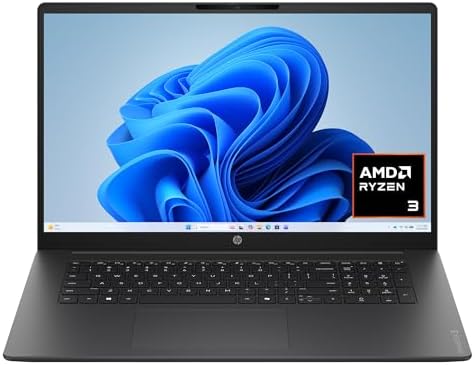
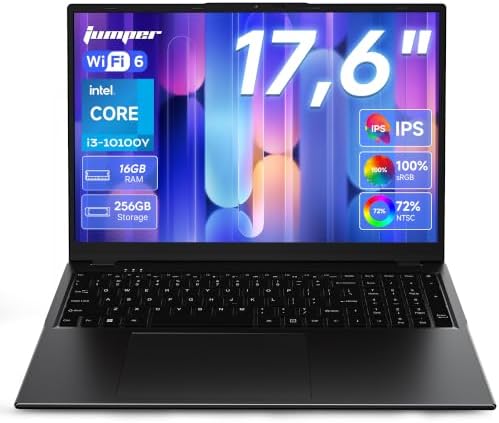
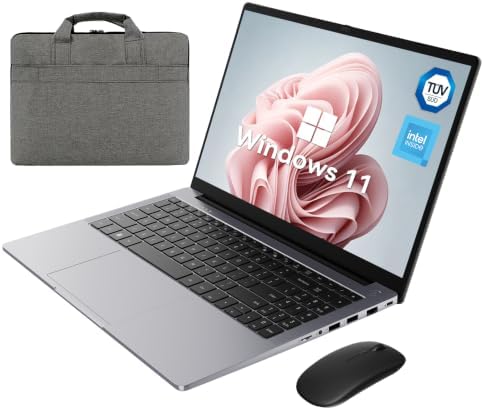


You can browse the web, watch videos, write documents, manage email, attend online classes, edit photos, use web applications, and handle plenty of everyday computing. Some Chromebooks also support Android apps through the Google Play Store, and some support a Linux environment for more advanced development work.
That is why the old idea that a Chromebook is “just a browser” is too simple. Modern Chromebooks can do much more.
However, ChromeOS still has important limits compared with Windows. The biggest one is software compatibility. If your work depends on a Windows desktop application, you need to check compatibility before buying a Chromebook — not after.
What Is a Windows Laptop?
When people compare Chromebooks with laptops, they almost always mean Windows laptops.
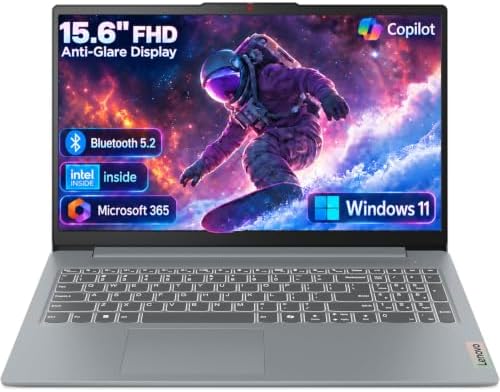

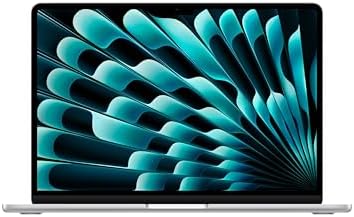
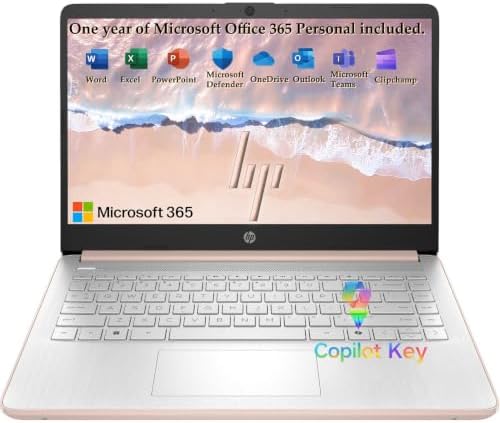


Windows 11 supports a massive range of desktop software — office programs, professional creative tools, development environments, games, utilities, and business applications. It is the most widely compatible operating system on the planet.
Windows laptops span an enormous price range, from $300 entry-level machines to $2,000 workstations with dedicated graphics cards and 32GB of RAM. That flexibility is both their greatest strength and the source of their added complexity.
One important note on specs: Microsoft’s minimum Windows 11 requirements list 4GB RAM and 64GB storage — but do not shop based on those minimums. In 2026, a new Windows laptop should have at least 8GB RAM (16GB is better for multitasking) and at least 256GB SSD for comfortable everyday use. A 64GB Windows machine will feel cramped almost immediately.
The Biggest Difference: Operating System
This is the most important section in the entire guide.
The hardware can look similar. The experience is not.
ChromeOS: Built for Simplicity
ChromeOS is deliberately simple. You sign in, connect to the internet, and start working. Updates happen automatically in the background. Google currently provides 10 years of automatic updates for supported Chromebook platforms — a meaningful commitment to long-term security.
One critical detail: the update expiration date is tied to when the platform was released, not when you bought the device. Always check a Chromebook’s Auto Update Expiration (AUE) date before buying, especially for older or refurbished models.
Windows 11: Full Control, Full Responsibility
Windows gives you a complete traditional desktop environment — install any software, manage local folders in detail, connect virtually any peripheral, and run any workflow you need. That power comes with more maintenance: more settings, more background processes, and more things that require active management.
For someone who enjoys full control of a computer, that flexibility is valuable. For someone who simply wants to open a laptop and work, ChromeOS can feel significantly easier.
5 Best Chromebook vs Laptop Picks on Amazon in 2026
These are real, currently available Amazon listings with verified ASINs. Prices and stock change, so always check the current Amazon page before ordering.
1. Acer Chromebook Plus 515 — Best Chromebook for Most Buyers

- The Best of Google, in a Laptop: Chromebooks run ChromeOS, the fast, secure operating system from Google, with built-in …
- Get Google AI Pro, 2TB of Storage, and More for 12 Months at No Cost: Boost your productivity and creativity with 12 mon…
- The Power To Do More : A 2x faster Intel Core i3-1305U processor and up to double the memory and storage, so you can edi…
The Acer Chromebook Plus 515 (model CB515-2HT-33M4) is the Chromebook I would look at first for anyone who wants a larger screen and enough hardware for real multitasking.
Key specs:
- Display: 15.6-inch Full HD (1920×1080) touchscreen
- Processor: Intel Core i3-1305U (13th Gen)
- RAM: 8GB LPDDR5X
- Storage: 256GB SSD
- Wireless: Wi-Fi 6E
- Ports: HDMI, 2× USB-C, 1× USB-A
- Battery: Up to 10 hours (Acer rated)
- OS: ChromeOS
The 15.6-inch screen gives you noticeably more workspace than most small Chromebooks. The Core i3 processor and 8GB RAM put it well above entry-level 4GB Chromebooks for multitasking — you can comfortably run multiple tabs, video calls, and web apps simultaneously.
Best for: Students, remote workers, Google Workspace users, streaming, video calls, and anyone who wants a large-screen Chromebook that handles everyday tasks without slowdown.
The honest caveat: It still runs ChromeOS. If you need a Windows-only application, buying a faster Chromebook will not solve that compatibility issue. The operating system is the limitation — not the processor.
2. Acer Chromebook Plus Spin 714 — Best Premium 2-in-1 Chromebook

- ✔【Screen】 14-inch WUXGA (1920 x 1200) IPS touch screen with a 16:10 aspect ratio and 340 nits brightness, 2-in-1 convert…
- ✔【Memory & Storage】 8GB LPDDR5 megahertz and 256GB PCIe NVMe SSD;
- ✔【Processor】 Intel Core Ultra 5 115U 1.5GHz Processor (upto 4.2 GHz, 8-Cores, 10-Threads);
If you want Chromebook simplicity but also a flexible 2-in-1 design, the Spin 714 is worth serious consideration.
Key specs:
- Display: 14-inch WUXGA touchscreen (convertible 360°)
- Processor: Intel Core Ultra 5 115U
- RAM: 8GB
- Storage: 256GB SSD
- Wireless: Thunderbolt 4, Wi-Fi 6E
- OS: ChromeOS
The 360-degree hinge lets you use this as a traditional laptop, in tent mode for presentations, or folded flat as a tablet — a genuine versatility advantage over standard clamshell Chromebooks. The Core Ultra 5 processor puts it in a noticeably different performance tier from budget Chromebooks.
Best for: Users who want a touchscreen, a convertible design, more processing power, and a compact device for school, work, and travel.
Skip it if: You only need Chrome, email, documents, and YouTube. A less expensive Chromebook handles those tasks fine — you do not need to spend more for features you will not use.
3. Acer Aspire 3 Spin 14 — Best Windows Alternative to a Chromebook

- Convertible Ease: The slim and convertible Aspire 3 Spin 14 is made for all around productivity. With its ultra-responsi…
- Designed for Real-World Performance: the Intel Core i3 processors offer reliable performance, multitasking capabilities,…
- Internal Specifications; 8GB LPDDR5 RAM and 128GB NVMe SSD
This is where the comparison gets interesting. The Aspire 3 Spin 14 is a Windows 11 convertible laptop at a price that competes directly with mid-range Chromebooks — but it gives you the full Windows ecosystem underneath.
Key specs:
- Display: 14-inch 1920×1200 IPS touchscreen (360° convertible)
- Processor: Intel Core i3-N305
- RAM: 8GB LPDDR5
- Storage: 128GB SSD
- OS: Windows 11 Home (S mode)
The 16:10 aspect ratio (1920×1200) gives useful extra vertical space for documents and web pages compared to standard 1080p. The Windows environment means no software compatibility surprises — everything you need to run works.
Best for: Users who are not sure whether ChromeOS will support everything they need, and want a Windows safety net in a convertible form factor.
The honest caveat: 128GB SSD is limited. If you plan to install many programs or store lots of photos and videos locally, look at a model with more storage. And check whether Windows 11 S mode meets your needs — S mode restricts app installs to the Microsoft Store by default.
4. Acer Aspire 3 — Best for Traditional Windows Use

- Premium Typing Comfort – Full-size backlit keyboard enhances typing in low-light environments, perfect for professionals…
- Powerful Performance – Powered by the AMD Ryzen 5 7430U processor and Up to 64GB DDR4 RAM for smooth multitasking, fast …
- Stunning Visual Experience – 15.6″ Full HD (1920 x 1080) Acer ComfyView LED-backlit display delivers bright, sharp visua…
If you need a straightforward Windows laptop rather than a Chromebook, this Aspire 3 configuration is the type of machine that actually makes sense for daily work.
Key specs:
- Display: 15.6-inch Full HD
- Processor: AMD Ryzen 5 7430U
- RAM: 16GB
- Storage: 512GB SSD
- OS: Windows 11 Pro
This combination gives you what a Chromebook simply cannot match in the same way: a conventional Windows desktop environment with generous local storage and memory. The Ryzen 5 processor handles everyday multitasking, office work, light creative tasks, and general computing without strain.
Best for: Freelancers, office users, students who need Windows software, people who store files locally, and anyone who wants traditional laptop flexibility without paying for a premium brand.
5. Lenovo IdeaPad Slim 3 — Another Strong Windows Choice

- With 16 GB of memory, runs as many programs as you want without losing the execution
- 15.6″ display with 1920 x 1080 resolution showcases movies, games and photos with impressive clarity
- 512 GB total SSD capacity is enough to store your essential documents and files, favorite songs, movies and pictures
The IdeaPad Slim 3 with Ryzen 5, 16GB RAM, and 512GB SSD is another solid example of why the Windows laptop category is worth considering at a comparable price to premium Chromebooks.
Key specs:
- Display: 15.6-inch Full HD touchscreen
- Processor: AMD Ryzen 5 7530U
- RAM: 16GB
- Storage: 512GB SSD
- OS: Windows 11
16GB RAM and a 512GB SSD give you comfortable room for files, programs, and multitasking over the long life of the machine. Lenovo’s build quality and keyboard have a strong reputation, and the IdeaPad line is well-represented in reviews for reliability.
Best for: Office work, large documents, multitasking, local storage, Windows applications, students, freelancers, and general home use.
Always verify the exact RAM, storage, and OS on the Amazon listing page before ordering. Configurations can vary between sellers.
Chromebook vs Laptop: Key Category Comparisons
Performance
A Chromebook with modest hardware can feel faster than a similarly specced Windows laptop for web-based tasks — because ChromeOS is a much lighter operating system. It uses resources efficiently. Windows does not.
That said, raw performance comparisons are only meaningful within the same software environment:
Chromebooks handle quickly: Web browsing · Gmail · Google Docs/Sheets/Slides · YouTube · Zoom · Online learning platforms · Web apps
Windows laptops pull ahead for: Large desktop applications · Advanced video editing · Complex development environments · Specialized business software · PC gaming · Heavy local multitasking
The performance gap is mostly a software platform question, not a hardware question.
Battery Life
Battery life depends on the specific model, processor, screen size, software, and workload — not the operating system alone.
That said, Chromebooks are often designed around efficient hardware and web-focused workloads. The Acer Chromebook Plus 515 is rated for up to 10 hours. Many Windows laptops in the same price range deliver 6 to 8 hours.
Bottom line: Check the specific model’s battery rating, then expect real-world results to be somewhat lower depending on screen brightness, browser tabs, and video use.
Storage
| Storage Amount | Chromebook | Windows Laptop |
|---|---|---|
| 64GB | Manageable for light cloud users | Avoid — too cramped |
| 128GB | Fine for most ChromeOS users | Limited but usable |
| 256GB | Comfortable starting point | Comfortable starting point |
| 512GB+ | More than enough | Best for heavy file users |
ChromeOS is designed around cloud storage, so smaller local drives are more acceptable. Windows users install more software locally, making larger SSDs more important.
RAM
For Chromebooks: 8GB is the sensible target for a new general-purpose machine in 2026.
For Windows laptops: 16GB is a more comfortable target for anyone who plans to keep the machine for several years and multitasks regularly. 8GB works, but you will feel the ceiling faster.
Security and Updates
ChromeOS has a strong structural security advantage: every app runs in its own sandbox, Verified Boot checks system integrity at startup, and updates install automatically in the background. Google now promises 10 years of updates for supported platforms.
Windows 11 has significantly improved its built-in security with Microsoft Defender, hardware-based protections, and stricter update enforcement. It remains a more complex attack surface — more software runs on it, and more malware targets it — so active security management matters more on Windows.
For non-technical users or shared family devices, ChromeOS’s hands-off security model is a practical daily-life advantage.
Offline Use
This is one of the most misunderstood parts of Chromebook ownership.
Chromebooks can work offline — Google Docs, Sheets, Slides, and Gmail all support offline mode with advance setup, and many Android apps work without a connection.
But ChromeOS is fundamentally designed as a connected operating system. Windows laptops work fully offline by default for virtually everything, with no setup required.
If you frequently work in low-connectivity environments — rural areas, flights, field work — Windows is the more reliable choice for offline productivity.
Chromebook vs Laptop by Use Case
For Students
Chromebook works well for: Google Classroom · Google Docs/Slides/Sheets · Gmail · Research · Video calls · Online learning platforms · Streaming
Choose Windows when: Your course requires specific desktop software (AutoCAD, engineering tools, statistics software, Adobe CC, specialized IDEs). Always check your school’s software requirements before buying.
For Remote Workers
If your job lives in Gmail, Google Docs, Slack (browser), Microsoft 365 Online, Zoom, CRM software, and web-based project management — a Chromebook may be genuinely all you need.
If your company requires a specific Windows application, or IT only supports Windows devices, the decision is already made.
For Freelancers
Writers, virtual assistants, content managers, and social media managers working primarily in browser-based tools often do just fine on a Chromebook.
Video editors, 3D artists, professional designers, and software developers almost always need Windows (or Mac). The key question is not “Am I a freelancer?” — it is “Which applications do I actually use every day?”
Write down your five most-used programs. Check whether each one works properly on ChromeOS. That exercise will give you a clear answer.
For Gaming
Windows wins this category clearly.
Cloud gaming and some Android titles work on supported Chromebooks, but the PC gaming library available on Windows is dramatically larger. If gaming is a priority, choose Windows.
For Video Editing
Simple editing through web tools (Clipchamp, WeVideo, KineMaster) works on Chromebooks. Professional-grade editing with DaVinci Resolve, Adobe Premiere Pro, or similar desktop software requires Windows. If video is your livelihood, choose accordingly.
For Programming
ChromeOS supports web development, cloud development, and Linux-based workflows (on supported models). But developers who need a specific Windows IDE, virtualization environment, Docker setup, or enterprise development tool should check compatibility carefully before buying a Chromebook.
Common Chromebook Buying Mistakes to Avoid
Mistake 1 — Buying the cheapest model available. A very cheap Chromebook may have 4GB RAM, slow storage, a basic processor, and a short remaining support window. Spend a little more where it matters.
Mistake 2 — Ignoring the Auto Update Expiration date. An older or refurbished Chromebook may have less remaining support than you expect. Check the AUE date on Google’s official page before purchasing.
Mistake 3 — Assuming every Android app works perfectly. Google Play support and app behavior varies by Chromebook model. If a specific Android app is important to you, verify compatibility for that exact device.
Mistake 4 — Buying a Chromebook when you need Windows software. More Chromebook performance will not fix a software compatibility problem. If you need a Windows application, buy a Windows laptop.
Mistake 5 — Buying too little RAM. 8GB for Chromebooks. 16GB for Windows laptops. Those are the 2026 targets for comfortable, long-term everyday use.
Mistake 6 — Buying too little storage. Cloud storage is useful, but local storage still matters. If you edit photos, download videos, or install many programs, choose at least 256GB — preferably 512GB for a Windows machine.
How to Evaluate Any Amazon Laptop Listing Before Buying
Amazon has thousands of laptop listings, and some are confusing. Before placing any order, verify these items on the actual product page:
- Exact model number — do not rely only on the product title
- Operating system — confirm ChromeOS, Windows 11, or what you actually want
- RAM amount — check the specifications section, not just the title
- Storage type and size — SSD vs eMMC makes a real performance difference
- Screen specs — size, resolution, touch support, panel type
- Seller information — who sells and ships the item
- Warranty details — understand what is covered for that exact configuration
- Return policy — always check the current policy before ordering
Also useful: if you are building a home office setup alongside your new laptop, our Amazon Laptop Stand Guide covers compatible stand options for most screen sizes.
The Simple Decision Tree
Answer these five questions in order:
1. Do I need Windows-only software? Yes → Buy a Windows laptop. Stop here. No → Continue.
2. Do I mostly work in a browser? Yes → A Chromebook is a strong option. Continue. No → Continue.
3. Do I need serious PC gaming? Yes → Choose Windows. Stop here. No → Continue.
4. Do I store lots of large files locally? Yes → Compare SSD capacity carefully. Windows may suit better. No → A Chromebook may be enough. Continue.
5. Do I want the simplest, lowest-maintenance computer possible? Yes → A Chromebook deserves serious consideration.
If you answered Windows at questions 1 or 3, the decision is already made.
Final Verdict: Chromebook vs Laptop
The Chromebook vs laptop debate does not have one universal winner.
Choose a Chromebook if you:
- Mainly browse the web
- Use Google Workspace (Docs, Gmail, Sheets, Slides)
- Attend online classes or stream video
- Want automatic updates and low maintenance
- Prefer cloud storage over large local drives
- Want good value for everyday computing
- Do not need Windows-only applications
Choose a Windows laptop if you:
- Need specific Windows software
- Play PC games
- Use professional desktop creative tools
- Edit large video projects
- Need extensive local storage
- Want maximum software compatibility now and in the future
- Need specialized business or engineering applications
What I Would Buy in 2026
Best Chromebook pick: The Acer Chromebook Plus 515 — Core i3-1305U, 8GB RAM, 256GB SSD, 15.6-inch Full HD touchscreen, Wi-Fi 6E. A well-rounded Chromebook that avoids the spec compromises of cheaper models while staying on a sensible budget.
Best Windows laptop pick: The Acer Aspire 3 with Ryzen 5 — Ryzen 5 7430U, 16GB RAM, 512GB SSD, Windows 11 Pro. Comfortable memory, generous storage, and a capable processor for traditional Windows computing at a fair price.
The best advice remains simple:
Do not buy the computer with the most impressive specifications. Buy the computer that runs the software you actually use.
For browser-first work — choose Chromebook. For software-first work — choose Windows.
That one rule prevents most Chromebook-versus-laptop buying mistakes.
Frequently Asked Questions
Is a Chromebook better than a laptop?
Not universally. A Chromebook is better for web-based work, Google Workspace, school tasks, and simple everyday computing. A Windows laptop is better for Windows software, PC games, professional applications, and greater hardware flexibility. Neither is better in every situation.
Is a Chromebook good for students?
Yes, for most coursework. Chromebooks handle Google Classroom, research, Docs, Slides, email, video calls, and online learning very well. Students in specialized programs — engineering, computer science, architecture, fine arts — should check specific software requirements before buying.
Can a Chromebook run Microsoft Word?
Yes, with a nuance. Microsoft Word is available through web-based Office Online and Android apps on supported Chromebooks. What a Chromebook cannot run is the full installed desktop version of Office. For most everyday document work, the web and Android versions cover the need.
Can you use a Chromebook without Wi-Fi?
Yes, partially. Google Docs, Sheets, and Slides work offline with advance setup. Many Android apps support offline use. But ChromeOS is designed around connected computing, so users who regularly work without internet access should evaluate their specific offline needs carefully before buying.
Can a Chromebook run Windows programs?
Not in the straightforward way a Windows laptop can. Some Windows apps have web or Android alternatives on ChromeOS, but you cannot simply install a Windows .exe file on a Chromebook. If a specific Windows program is essential to your work, buy a Windows computer.
Are Chromebooks good for gaming?
For casual mobile-style gaming through Android apps and cloud gaming services — yes. For serious PC gaming through Steam, Epic Games, and the broader PC game library — no. Windows is the clear choice for gaming.
How long do Chromebooks receive updates?
Google currently provides 10 years of automatic updates for supported ChromeOS platforms. However, the exact end date depends on the specific model and when its platform was released. Always check the model’s AUE date using Google’s official support page before buying.
Should I buy 8GB or 16GB RAM?
For a Chromebook: 8GB is the sensible target for a new general-purpose machine. For a Windows laptop: 16GB is the better choice for comfortable multitasking and a longer useful lifespan. Your workload ultimately determines the right amount.
Useful Official Resources
- Google Chromebook Auto Update Schedule — check the update expiration date for any specific Chromebook model before buying
- Google Chromebook App Compatibility Guide — official list of supported apps and platform features
- Microsoft Windows 11 System Requirements — official hardware requirements for Windows 11
As an Amazon Associate I earn from qualifying purchases. Amazon prices, stock, configurations, and availability change regularly. Always check the current Amazon product page before placing an order. All product links use the tracking ID techrigreview-20.

MD.HASAN is an experienced SEO expert and amazon products review writer passionate about helping people find right products on amzon for buy without confusion. With 4 years of hands-on experience in content strategy and search engine optimization, he specializes in writing SEO-friendly blog posts that rank, engage, and convert.


