🔗 Affiliate Disclosure: As an Amazon Associate, Tech Rig Review earns from qualifying purchases. Links on this page may be affiliate links — at no extra cost to you.
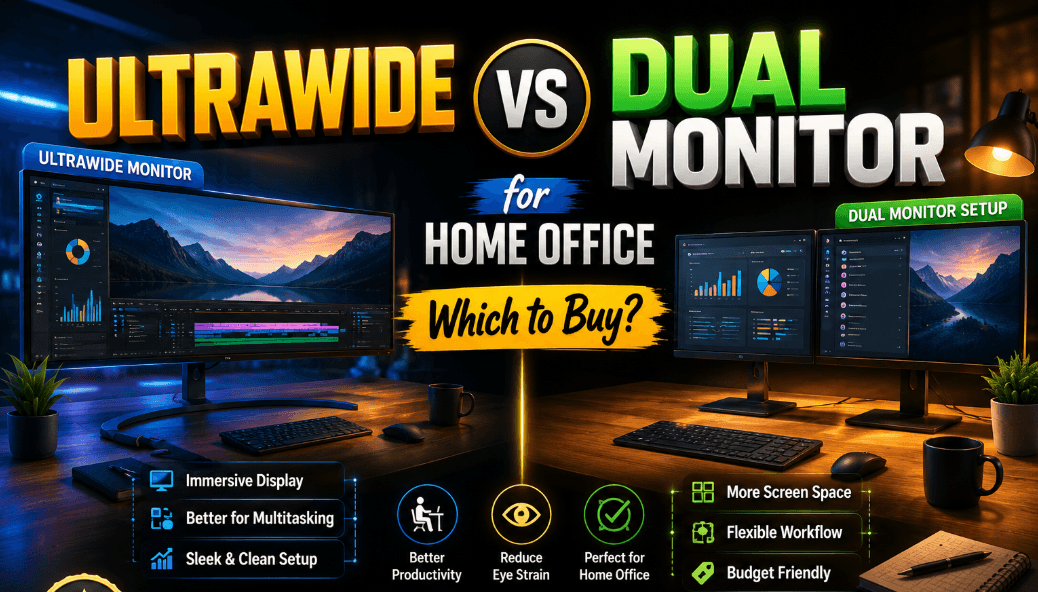
If you’re setting up (or upgrading) a home office, you’ve probably hit the same fork in the road as everyone else: do you buy one large ultrawide monitor, or do you go with the classic dual monitor setup? Both options promise more screen real estate, better multitasking, and a more immersive workspace — but they get there in very different ways, and the “right” choice depends heavily on your desk space, your workflow, and even your graphics card.
This guide breaks down the ultrawide vs dual monitor debate in detail, covering productivity, gaming, cost, ergonomics, and real-world use cases, so you can make a decision you won’t regret three months into owning it.
Table of Contents
Quick Answer: Which Should You Buy?
If you want a fast answer before diving into the details:
- Choose an ultrawide monitor if you value a seamless, bezel-free view, do a lot of video/photo editing, or want a cleaner desk setup.
- Choose dual monitors if you multitask heavily between distinct applications, need to angle screens toward multiple people, or want a more budget-flexible, upgradeable setup.
Now let’s unpack exactly why.
What Is an Ultrawide Monitor?
An ultrawide monitor uses a wider aspect ratio than a standard screen — typically 21:9 or 32:9, compared to the traditional 16:9. In practical terms, this means:
- A 21:9 ultrawide (common sizes: 34″, 38″) gives you roughly the width of two 24-inch monitors side by side, minus the bezel gap in the middle.
- A 32:9 super ultrawide (common sizes: 49″) is essentially equivalent to two 27-inch monitors merged into a single curved panel.
Because it’s one continuous panel, there’s no bezel interrupting your view, and the resolution scales as a single canvas rather than two separate displays.
What Is a Dual Monitor Setup?
A dual monitor setup uses two separate physical screens, usually identical models, placed side by side (or one horizontal and one vertical, depending on your workflow). Each monitor is treated by your operating system as its own display, which means:
- You can angle each screen independently toward your line of sight.
- You can mix and match monitor sizes, resolutions, or even orientations (landscape and portrait).
- Each screen can run completely different refresh rates or color profiles if needed.
This is the more “traditional” multi-monitor setup, and it remains extremely popular in both home offices and professional studios.
Ultrawide vs Dual Monitor: Side-by-Side Comparison


| Factor | Ultrawide Monitor | Dual Monitor Setup |
|---|---|---|
| Bezel interruption | None (single panel) | Visible gap between screens |
| Desk space needed | Less overall footprint | More width, unless using an arm |
| Multitasking | Great with window-snapping | Excellent — one app per screen |
| Immersion (movies, games) | Very high | Broken by bezel |
| Flexibility to angle screens | Limited (one fixed curve) | High — each screen adjusts independently |
| Cost for equivalent screen space | Often higher per inch | Can be cheaper, especially with used monitors |
| Portability/reconfiguration | Simple, single cable | More cables and stands to manage |
| Best for | Editing, immersive work, minimalist desks | Heavy multitaskers, coders, traders, streamers |
Productivity: Which Setup Actually Gets More Work Done?
Ultrawide for Focused, Continuous Work
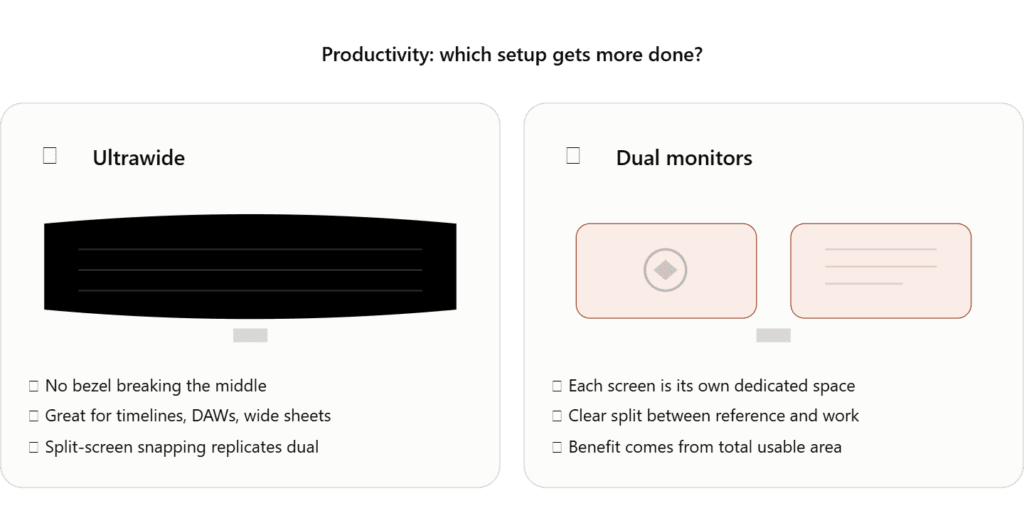
Ultrawide monitors shine when your work involves one large continuous view — a timeline in a video editor, a wide spreadsheet, or a DAW (digital audio workstation) with many tracks stacked horizontally. Because there’s no bezel breaking the middle of your view, dragging windows or scrolling across the canvas feels smooth and uninterrupted.
Most modern ultrawide monitors also support split-screen window snapping, letting you divide the screen into two, three, or even four sections. This effectively replicates a dual monitor layout on a single panel, minus the bezel gap.
Dual Monitors for Task Switching and Reference Work
If your job involves constantly referencing one app while working in another — for example, keeping a video call open on one screen while working in a document on the other, or having Slack and email on one screen with your main task on the other — dual monitors tend to feel more natural. Each screen functions as its own dedicated space, so there’s a clear mental boundary between “reference” and “active work.”
Research on multitasking and screen real estate has generally found that increased screen space improves task efficiency, but the benefit depends more on total usable area and window management than on whether that area comes from one screen or two.
Gaming: Ultrawide vs Dual Monitor
This is one of the clearest differentiators between the two setups.
Ultrawide for Gaming
Ultrawide monitors are widely favored by gamers because:
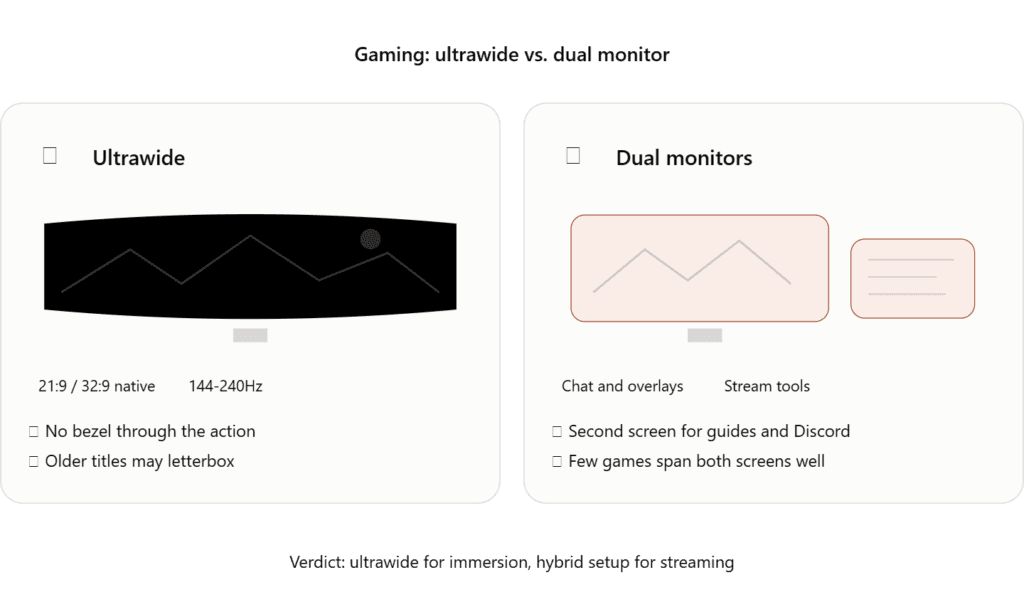
- Many modern games natively support 21:9 and 32:9 aspect ratios, expanding your field of view without any visual interruption.
- There’s no bezel cutting through the middle of the action.
- Higher refresh rate ultrawide panels (144Hz–240Hz) are now common, appealing to competitive gamers.
The tradeoff is that not every game supports ultrawide resolutions properly — older or smaller titles may show black bars on the sides or stretched UI elements.
Dual Monitors for Gaming
Dual monitor gaming setups are less common for the main display, but many gamers use a second monitor as a dedicated space for chat apps, stream overlays, guides, or Discord — while gaming on a single primary screen. Very few games support “spanning” gameplay across two monitors well, since the bezel would cut directly through your view.
Verdict: For pure gaming immersion, ultrawide wins. For streaming or gaming while monitoring chat/tools, a primary monitor plus a secondary monitor (a hybrid setup) is often the best of both worlds.
Video Calls, Streaming, and Content Creation
If you’re on video calls frequently, dual monitors offer a practical advantage: you can keep the call window on one screen and your notes, slides, or shared documents on the other, without needing to resize or overlap windows.
For content creators editing video or audio, an ultrawide’s continuous timeline view is often preferred, since scrubbing through a long timeline without a bezel gap in the middle makes fine editing easier.
Desk Space and Ergonomics
Ultrawide Advantages
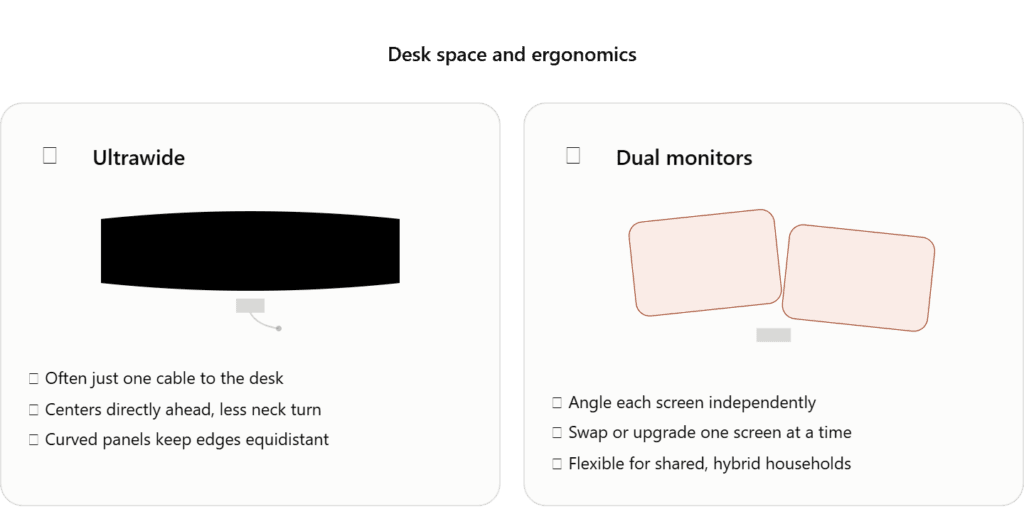
- A single stand and single cable (in many cases, just one USB-C cable for power, video, and data) simplifies cable management.
- Cleaner overall desk aesthetic, since there’s only one monitor arm or stand to manage.
- Easier to center directly in front of you, avoiding the neck-turning that comes from looking at a second screen off to the side.
Dual Monitor Advantages
- You can angle each screen individually — useful if you often show a second screen to a colleague or family member.
- Easier to replace a single screen if it fails or becomes outdated, without replacing your entire display setup.
- More flexible for shared or hybrid households, since one screen can be turned toward a different area entirely.
From a pure ergonomics standpoint, a curved ultrawide monitor has a slight edge, since a curved panel keeps the edges of the screen roughly equidistant from your eyes, reducing the need to refocus as you look from center to edge — something flat dual monitor setups can’t replicate as effectively.
Cost Comparison
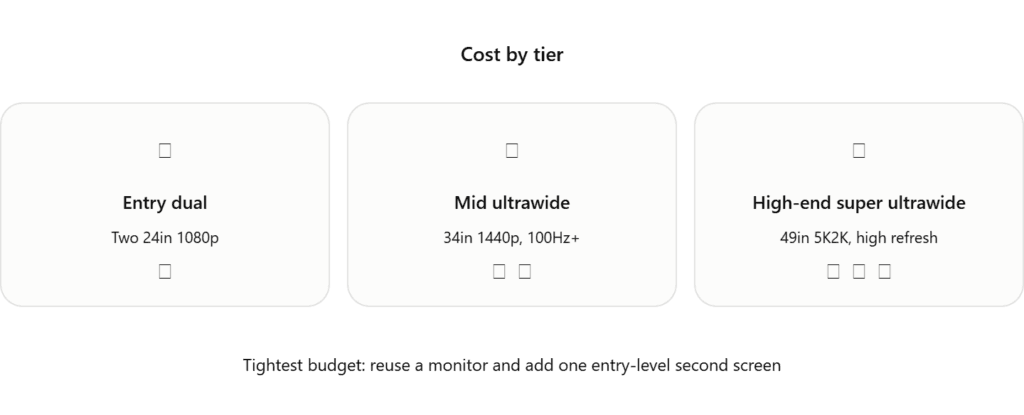
Pricing varies significantly by brand and specs, but here’s a general framework:
- Entry-level dual monitor setup (two 24″ 1080p monitors): Often the most budget-friendly way to get more screen space, especially if you already own one monitor and just add a second.
- Mid-range ultrawide (34″ 1440p, 100Hz+): Usually priced similarly to two mid-range monitors combined, sometimes slightly more due to the specialized panel.
- High-end super ultrawide (49″ 5K2K, high refresh rate): This is typically the most expensive option in the comparison, often costing more than two premium 27-inch monitors combined, due to the complexity of manufacturing a single large panel.
If budget is the primary constraint, dual monitors — especially buying one new and pairing it with a monitor you already own — is usually the cheaper path to more screen space.
Graphics Card and Hardware Considerations
An often-overlooked factor: your GPU needs to be capable of driving the resolution you choose.
- A 34″ ultrawide at 3440×1440 requires roughly the same GPU horsepower as two 1440p monitors combined, since the total pixel count is similar.
- A 49″ super ultrawide at 5120×1440 has a very high total pixel count, and older or budget GPUs may struggle to maintain high frame rates, particularly in demanding games.
- Dual monitor setups let you distribute resolution more flexibly — for example, running your primary monitor at 1440p and a secondary monitor at a lower 1080p resolution to ease the load on your GPU.
If you’re using an older laptop or a lower-end GPU, check its output specifications carefully before committing to a high-resolution ultrawide, since not all ports support the necessary bandwidth for higher refresh rates at large resolutions.
Software and Window Management
Modern operating systems handle both setups well, but there are some practical differences:
- Windows and macOS both treat dual monitors as separate displays, meaning taskbars, docks, and window snapping behave independently on each screen.
- Ultrawide monitors are treated as one large canvas, so window snapping tools (built into Windows 11, or third-party apps like PowerToys FancyZones on Windows and Rectangle on Mac) become especially useful for dividing the space efficiently.
- Some professional software (like video editing suites or CAD tools) has UI elements specifically designed to spread across ultrawide displays, offering more usable toolbars and timelines without overlapping panels.
If you’re not comfortable manually managing window layouts, dual monitors offer a more “automatic” separation of tasks, since each screen naturally acts as its own zone.
Who Should Buy an Ultrawide Monitor?
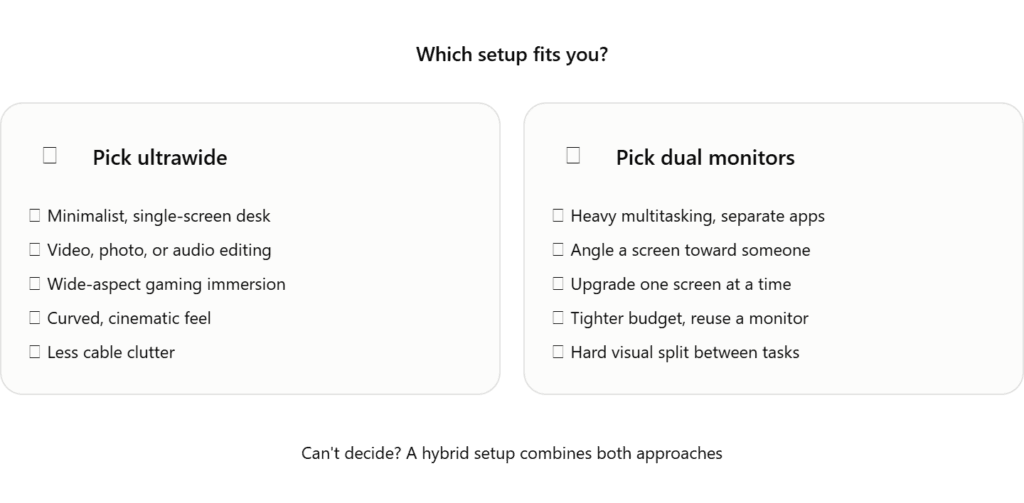
An ultrawide is likely the better choice if you:
- Want a minimalist, single-screen desk setup
- Do video, photo, or audio editing with long timelines
- Play games that support wide aspect ratios and want maximum immersion
- Prefer a curved, cinematic viewing experience
- Want to reduce cable clutter and simplify your desk
Who Should Buy Dual Monitors?
Dual monitors are likely the better choice if you:
- Multitask heavily between distinct, separate applications
- Need to angle one screen toward a colleague, client, or family member
- Want the flexibility to upgrade or replace one screen at a time
- Are working with a tighter budget and want to reuse an existing monitor
- Do work that benefits from a hard visual separation between tasks (e.g., trading, coding with a reference screen, customer support with a CRM open)
Can You Combine Both? The Hybrid Setup
It’s worth noting that these two options aren’t mutually exclusive. A growing number of home office setups use a hybrid approach: one ultrawide monitor as the primary display, paired with a smaller secondary monitor (often in portrait orientation) off to the side for chat apps, documentation, or monitoring tools.
This hybrid setup gives you the immersive, bezel-free main workspace of an ultrawide, while still keeping a dedicated secondary space for reference material — effectively combining the strengths of both approaches, at a higher total cost and larger desk footprint.
Common Mistakes to Avoid
Mistake 1: Buying an Ultrawide Without Checking GPU Compatibility
High-resolution ultrawide panels demand more from your graphics card. Check your GPU’s specifications and the monitor’s native resolution and refresh rate before purchasing, especially if gaming is a priority.
Mistake 2: Choosing Dual Monitors of Mismatched Sizes Without a Plan
Two monitors of different sizes or resolutions can be used effectively, but only if you deliberately account for the height mismatch (usually solved with adjustable monitor arms). Buying mismatched monitors without a way to align their tops or centers often results in an awkward, tiring viewing experience.
Mistake 3: Underestimating Desk Depth
Ultrawide monitors, especially curved ones, often require more desk depth than expected to maintain a proper viewing distance. Measure your desk depth and the monitor’s recommended viewing distance before buying.
Mistake 4: Ignoring Stand or Mount Compatibility
Some ultrawide monitors are heavy and require a specific VESA mount or a reinforced monitor arm. Similarly, dual monitor arms need to support the combined weight of both screens. Check weight and VESA compatibility in advance to avoid returning your purchase.
Mistake 5: Not Testing Aspect Ratio Support for Your Main Use Case
Before buying an ultrawide for gaming or video work, confirm that your most-used software or games actually support the aspect ratio well. Some applications don’t scale properly on 32:9 displays, leaving black bars or stretched interfaces.
Frequently Asked Questions
Is an ultrawide monitor the same as two monitors combined?
Not exactly. A 34″ ultrawide is roughly comparable in width to two 24″ monitors, but it’s a single continuous panel with no bezel gap, and typically a slightly different total resolution and aspect ratio than two separate screens combined.
Do I need a powerful GPU for an ultrawide monitor?
For basic productivity work, most modern GPUs handle ultrawide resolutions fine. For gaming at high refresh rates, especially on 49″ super ultrawide monitors, a mid-range to high-end GPU is recommended.
Can I use dual monitors with a laptop?
Yes, most modern laptops support at least one or two external displays via HDMI, DisplayPort, or USB-C, though the exact number depends on your laptop’s graphics hardware and port configuration.
Which is better for programming: ultrawide or dual monitors?
Both work well. Many developers prefer dual monitors for keeping documentation or a browser open on one screen while coding on the other, while others prefer an ultrawide for split-screen code editors and terminals side by side without a bezel gap.
Is a curved ultrawide better than a flat one?
For larger ultrawide sizes (34″ and above), a curved panel generally provides a more comfortable viewing experience, since the edges of the screen remain closer to equidistant from your eyes.
Final Verdict
There’s no universally “better” option between ultrawide and dual monitors — only a better option for your specific workflow, budget, and desk space.
- If you value a clean, immersive, single-screen experience and do work that benefits from a wide, continuous canvas, an ultrawide monitor is likely worth the investment.
- If you multitask across distinct applications, want flexibility to angle and upgrade screens independently, and are mindful of budget, a dual monitor setup remains a reliable, proven choice.
Whichever you choose, prioritize proper ergonomics — center your primary screen at eye level, maintain a comfortable viewing distance, and invest in a good monitor arm or stand if your desk space allows it. The right monitor setup should reduce strain and friction in your workday, not just add more screen space for its own sake.

MD.HASAN is an experienced SEO expert and amazon products review writer passionate about helping people find right products on amzon for buy without confusion. With 4 years of hands-on experience in content strategy and search engine optimization, he specializes in writing SEO-friendly blog posts that rank, engage, and convert.