
Affiliate disclosure: As an Amazon Associate, Tech Rig Review earns from qualifying purchases. Links on this page may be affiliate links, at no extra cost to you.
Managing multiple computers with separate keyboards, mice, and monitors can make a workspace crowded and inconvenient. Whether you use two computers for work, switch between a personal desktop and a laptop, or manage several systems in a home office, constantly changing cables and peripherals can interrupt your workflow.
A KVM switch offers a practical solution. KVM stands for Keyboard, Video, and Mouse. This device allows you to control multiple computers using a shared keyboard, monitor, and mouse. Instead of connecting and disconnecting your accessories every time you change computers, you can switch between connected systems using a button, keyboard shortcut, or remote control, depending on the model.
Choosing the right KVM switch requires more than checking how many computers it supports. You should also consider monitor resolution, refresh rate, video connections, USB compatibility, switching methods, and whether the device works with your existing computers.
In this guide, we’ll explain the benefits of KVM switches, the different types available, and the most important features to consider before purchasing one. If you’re searching for the 10 best KVM switches on Amazon, understanding these factors can help you choose a suitable option for your setup.
10 Best KVM Switches on Amazon
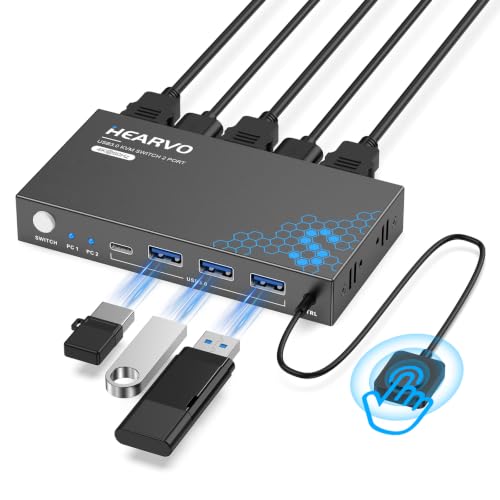
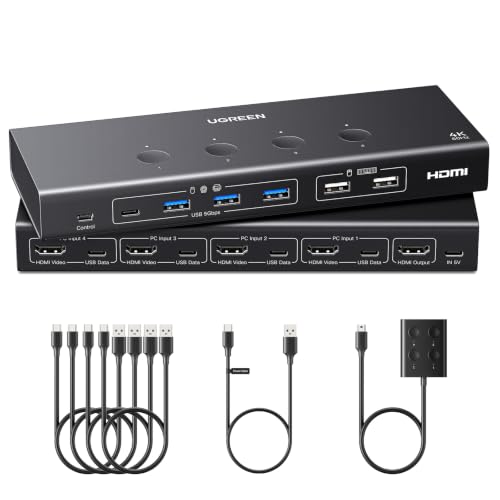

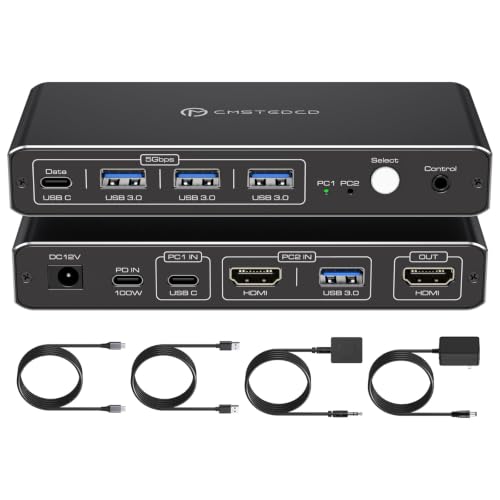
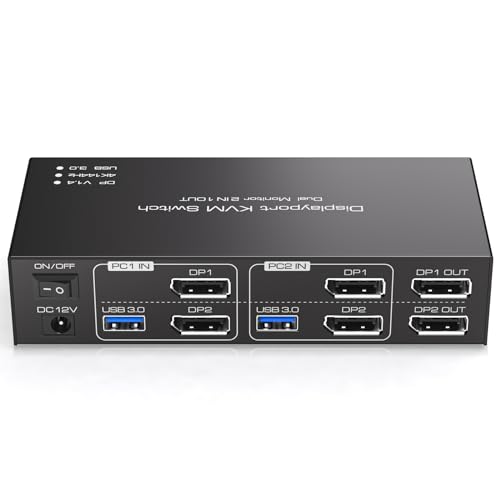
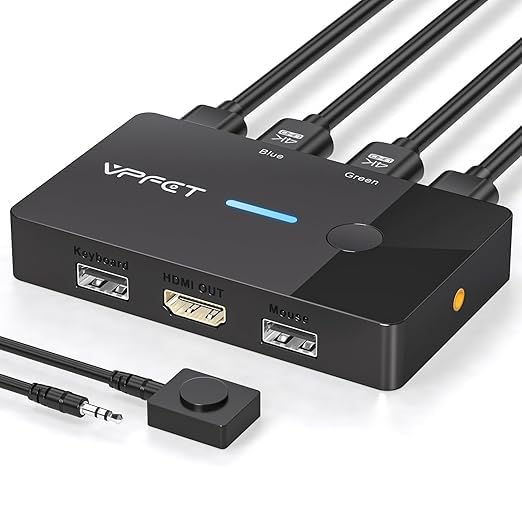
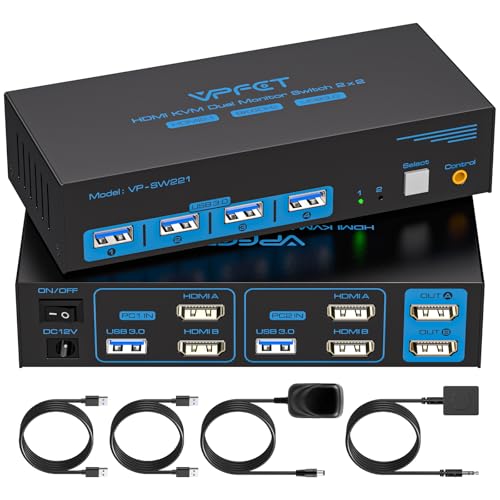


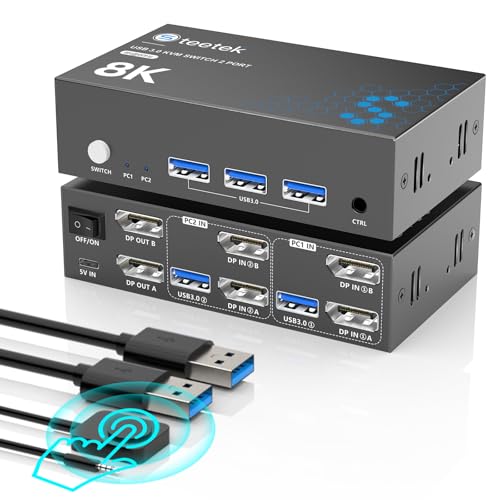
What Is a KVM Switch and How Does It Work?
A KVM switch is a hardware device that allows multiple computers to share one set of peripherals. The three main components are a keyboard, a video display, and a mouse.
For example, imagine you have a desktop computer and a work laptop connected to the same monitor. Without a KVM switch, you might need separate keyboards and mice or repeatedly change the monitor’s input source.
With a compatible KVM switch, both computers connect to the device. Your monitor, keyboard, and mouse connect to its shared peripheral ports. You can then select which computer you want to control.
Most KVM switches support two or more computers, although the exact number depends on the model. Some also include additional USB ports for accessories such as webcams, printers, external storage devices, and headsets.
The main purpose is to simplify computer management and reduce the need for multiple peripheral setups.
Benefits of Using a KVM Switch
1. Control Multiple Computers With One Setup
One of the biggest advantages of a KVM switch is the ability to control multiple computers using shared peripherals. This is particularly useful for people who work with a personal computer and a separate business computer.
You can move between systems without maintaining two complete desk setups.
2. Reduce Desk Clutter
Multiple keyboards, mice, and display cables can quickly make a workspace messy. A KVM switch helps organize the connections and reduces the number of accessories you need on your desk.
A cleaner workspace can also make it easier to organize other equipment.
3. Improve Productivity
Switching between computers becomes easier when you don’t have to reconnect peripherals manually. This is useful for professionals who regularly move between different operating systems, work environments, or computing tasks.
4. Save Money on Additional Peripherals
Instead of purchasing separate keyboards, mice, and displays for every computer, you may be able to share compatible accessories.
However, the number of peripherals you can share depends on the KVM switch’s available ports and supported features.
5. Support Different Computer Setups
KVM switches are useful in home offices, small businesses, IT environments, software development workspaces, and testing stations.
They can help manage desktops, laptops, and other compatible computers from a centralized workstation.
Different Types of KVM Switches
Before choosing a KVM switch, understand the common types available. Different designs serve different workspace requirements.
HDMI KVM Switches
HDMI KVM switches use HDMI connections to transfer video signals between computers and a shared display.
They are common in home offices, gaming setups, and general desktop environments. Before buying one, check the supported resolution, refresh rate, HDMI version, and number of connected computers.
DisplayPort KVM Switches
DisplayPort KVM switches are designed for compatible computers and monitors that use DisplayPort connections.
They can be suitable for professional workstations, high-resolution displays, and some gaming environments. Make sure the switch supports the display specifications you need.
USB-C KVM Switches
USB-C KVM switches are useful for modern laptops and computers with compatible USB-C ports.
Some models support video, data transfer, and power delivery through compatible connections. However, not every USB-C port supports video output. You should verify that your computer supports the necessary DisplayPort Alt Mode or Thunderbolt functionality.
Dual-Monitor KVM Switches
A dual-monitor KVM switch allows multiple computers to share two displays.
This can be useful for professionals who work with spreadsheets, editing applications, programming tools, or several windows simultaneously.
Check whether the device supports independent extended displays rather than simply duplicating the same image.
Gaming KVM Switches
Gaming-oriented KVM switches are designed for users who want to share a display and peripherals between gaming computers or other systems.
Refresh rate, resolution, signal compatibility, and input responsiveness are important considerations. A switch that supports a high resolution but only a low refresh rate may not suit a high-refresh-rate gaming monitor.
How to Choose the Best KVM Switch
Not every KVM switch is suitable for every computer setup. The following factors can help you identify the right features before purchasing.
1. Number of Computers Supported
Start by determining how many computers you want to connect.
Two-port KVM switches are suitable for people using a desktop and laptop. If you regularly work with three or four computers, consider a switch that supports more connections.
Buying a device with too few inputs can limit your setup later. However, there is no need to pay extra for additional computer ports if you only need to control two systems.
2. Monitor Resolution Support
Resolution determines how much visual detail your monitor can display.
Common display resolutions include Full HD (1920 × 1080), QHD (2560 × 1440), and 4K (3840 × 2160).
Check the maximum resolution supported by the KVM switch and make sure it matches your monitor and computer requirements.
Also, pay attention to whether the advertised resolution is supported at your desired refresh rate. A device may support 4K at 60Hz but not at 120Hz or 144Hz.
3. Refresh Rate Compatibility
Refresh rate refers to how many times your monitor updates its image per second. It is measured in hertz (Hz).
For general office tasks, a standard refresh rate may be sufficient. Gaming and motion-intensive applications can benefit from higher refresh rates.
If you use a 120Hz, 144Hz, or 240Hz monitor, verify that the KVM switch supports the required combination of resolution and refresh rate.
4. Video Connection Types
Check the available video connections on your computers and monitor.
Common options include HDMI, DisplayPort, and USB-C. Some KVM switches support only one video connection type, while others offer different connection arrangements.
The switch must be compatible with both the computer’s video output and the monitor’s input.
If you need adapters, consider their additional cost and compatibility before purchasing.
5. USB Ports and Peripheral Support
A KVM switch should provide enough ports for the accessories you want to share.
Think about whether you need connections for:
- Keyboard and mouse
- Webcam
- USB headset
- External storage
- Printer
- Other USB accessories
Some devices offer dedicated keyboard and mouse ports alongside additional USB hub connections.
Check the USB version and data-transfer capabilities if you regularly connect storage devices or other high-bandwidth accessories.
6. Switching Methods
Different KVM switches provide different ways to change between connected computers.
Common switching methods include:
- Physical buttons on the device
- Wired remote control
- Keyboard hotkeys
- Software-based switching on supported models
A physical button is simple and straightforward. A remote switch can be convenient if the main device is hidden under a desk.
Keyboard shortcuts may be useful for people who frequently switch between computers.
Choose a method that fits your desk arrangement and daily workflow.
7. Power Requirements
Some KVM switches operate using power from connected devices, while others require an external power adapter.
Powered models may provide more stable operation for certain setups, especially when several accessories are connected.
Check whether the device requires external power and whether its power arrangement supports your intended peripherals.
8. Operating System Compatibility
Make sure the KVM switch works with the operating systems installed on your computers.
Many hardware KVM switches support common operating systems without requiring special software. However, advanced switching features and additional functions may have specific compatibility requirements.
Also check whether your keyboard, mouse, and other USB accessories work properly through the device.
9. Build Quality and Cable Management
A KVM switch should be practical for everyday use.
Look for a durable enclosure, clearly labeled ports, stable connections, and a sensible cable arrangement.
Consider the location of the device and the length of the included cables. Short cables may create installation problems if your computers and monitor are far apart.
10. Additional Features
Some KVM switches offer extra features that may improve convenience.
These can include EDID emulation, hot-plug support, audio switching, microphone connections, USB hub functionality, and remote controls.
EDID management is particularly useful because it helps maintain communication between computers and displays when switching inputs. This can reduce problems such as windows moving between screens or displays being detected incorrectly.
Only pay extra for features that are useful for your particular setup.
What to Consider Before Buying a KVM Switch
Before placing an order, evaluate your entire workspace rather than focusing on the KVM switch alone.
First, identify how many computers you want to connect and whether you need one or two monitors. Then check the video ports and supported display specifications of each computer.
Next, consider the peripherals you want to share. A basic KVM switch may be sufficient for a keyboard, mouse, and monitor, while a more advanced setup may require additional USB ports.
Cable requirements are another important consideration. Make sure the included cables are long enough and that you have the correct connection types.
Finally, compare the total cost. A cheaper KVM switch may not include all the cables, power adapters, or features you need. Consider the complete setup cost instead of looking only at the advertised price.
Common KVM Switch Buying Mistakes to Avoid
One common mistake is purchasing a KVM switch without checking monitor compatibility. A switch that supports your display connection may still fail to deliver the resolution or refresh rate you expect.
Another mistake is confusing USB-C compatibility with universal laptop compatibility. USB-C describes a connector, but its capabilities vary between devices.
Some buyers also overlook the number of USB ports. If you want to share a webcam, keyboard, mouse, and external storage device, make sure the switch supports your requirements.
Avoid assuming that every dual-monitor KVM switch supports two independent extended displays. Check the supported display configuration carefully.
Finally, don’t overlook power requirements, cable length, and switching convenience. These smaller details can make a significant difference in everyday use.
Who Should Use a KVM Switch?
KVM switches can be useful for several types of users.
Remote workers: People who use separate work and personal computers can share a monitor, keyboard, and mouse.
Software developers: Developers who work across multiple computers or operating systems can switch between systems without maintaining separate desks.
Gamers: Users with multiple gaming systems may benefit from sharing compatible displays and peripherals.
IT professionals: Technicians and system administrators can manage several computers from a single workstation.
Small businesses: Teams with multiple computer systems may find KVM switches useful for organizing shared workspaces and testing environments.
The right choice depends on the number of computers, display requirements, and accessories involved.
Frequently Asked Questions
1. What does KVM stand for?
KVM stands for Keyboard, Video, and Mouse. A KVM switch allows multiple computers to share these peripherals through one centralized setup.
2. Can I use one keyboard and mouse with two computers?
Yes. A compatible KVM switch allows you to connect two or more computers and share one keyboard and mouse. You can switch between the connected systems using its supported switching method.
3. Do KVM switches support 4K monitors?
Many modern KVM switches support 4K displays, but specifications vary. Check the supported resolution, refresh rate, connection type, and other display requirements before purchasing.
4. Can I connect a laptop and desktop to the same KVM switch?
Yes. You can connect a compatible laptop and desktop to the same KVM switch. Make sure the laptop has the necessary video and USB connections or supports a suitable docking or adapter arrangement.
5. Does a KVM switch reduce monitor performance?
A properly compatible KVM switch should support its advertised display specifications. However, an incompatible or lower-specification switch can limit resolution, refresh rate, or other display capabilities.
6. Do KVM switches require software?
Most basic hardware KVM switches do not require dedicated software for standard switching. Some advanced features may require software or specific configuration, depending on the model.
7. Is a KVM switch worth buying?
A KVM switch can be worthwhile if you regularly use multiple computers and want to share a monitor, keyboard, and mouse. It can simplify your workspace, reduce cable changes, and make switching between systems more convenient.
Final Buying Advice
Choosing the right KVM switch starts with understanding your computer setup. Consider how many systems you need to connect, the type of monitor you use, your preferred video connection, and the peripherals you want to share.
For a basic home office, a simple two-computer switch may provide everything you need. For more advanced workstations, gaming setups, or multi-monitor environments, pay closer attention to resolution, refresh rate, USB connectivity, and additional features.
Take time to compare compatibility and specifications before purchasing. The best KVM switch is not necessarily the one with the most features or the lowest price. It is the one that works reliably with your computers, monitor, and everyday accessories.

MD.HASAN is an experienced SEO expert and amazon products review writer passionate about helping people find right products on amzon for buy without confusion. With 4 years of hands-on experience in content strategy and search engine optimization, he specializes in writing SEO-friendly blog posts that rank, engage, and convert.


