
Affiliate disclosure: As an Amazon Associate, Tech Rig Review earns from qualifying purchases. Links on this page may be affiliate links, at no extra cost to you.
Choosing the right capture card can make a big difference when recording gameplay, streaming live content, or capturing video from an external camera. Whether you are a beginner starting a gaming channel or an experienced content creator building a professional streaming setup, a good capture card can help you produce smoother recordings and better-quality video.
However, not every capture card offers the same features. Some are designed for basic 1080p recording, while others support 4K video, high refresh rates, HDR, and advanced passthrough capabilities. The right choice depends on your recording goals, computer hardware, gaming equipment, and budget.
If you are searching for the 10 best capture cards on Amazon, it is worth understanding the important features before making a purchase. This guide explains how capture cards work, their benefits, the specifications to compare, and what to consider when choosing one for your setup.
10 Best Capture Cards on Amazon


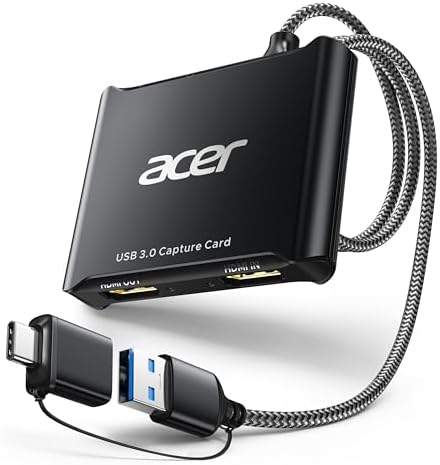
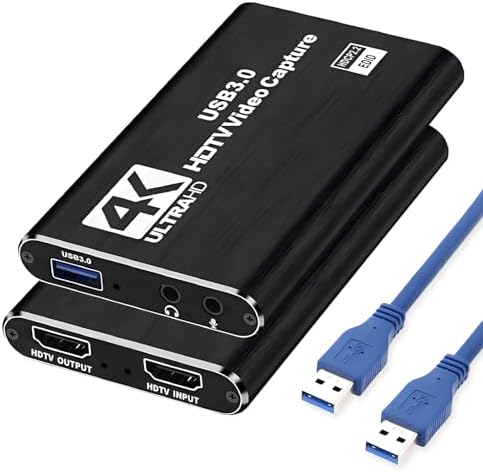


What Is a Capture Card?
A capture card is a device that receives video and audio signals from another source and transfers them to a computer or compatible recording system. It allows users to record, stream, and manage external video sources using software.
Capture cards are commonly used by gamers who want to stream console gameplay, content creators who record footage from cameras, and professionals who need to capture video for editing or live production.
For example, you can connect a gaming console to a capture card and send the video signal to your computer. Using recording or streaming software, you can capture gameplay, add commentary, display overlays, and broadcast your content online.
Depending on the model, a capture card may connect through USB, USB-C, or an internal PCIe slot. Some external models are compact and portable, while internal models are designed for desktop computers and more permanent installations.
Why Do You Need a Capture Card?
A capture card can be useful when your regular recording options do not provide enough flexibility or control.
Here are some common reasons people use capture cards:
1. Record High-Quality Gameplay
Console players often want more control over their gameplay recordings. A capture card can send video to a computer, allowing users to record longer sessions and manage their footage through dedicated software.
Depending on the device, you may be able to capture Full HD or 4K video at supported frame rates.
2. Stream Games Live
Capture cards make it easier to connect gaming consoles to streaming software. You can manage your video sources, add alerts, display graphics, and combine gameplay with microphone audio.
This is useful for creators who want more control over their live broadcasts.
3. Capture Camera Footage
Some capture devices allow compatible cameras to send video directly to a computer. This can be helpful for live presentations, online classes, tutorials, interviews, and professional video production.
4. Improve Your Recording Workflow
Instead of relying entirely on built-in recording features, you can use computer software to manage recording quality, audio sources, scenes, and saved video files.
This provides additional flexibility for creators who regularly edit and publish content.
Different Types of Capture Cards
Before choosing a capture card, understand the main types available.
External USB Capture Cards
External capture cards connect to a computer through USB or USB-C. They are popular among beginners, laptop users, and creators who need a portable recording solution.
They are generally easier to install because they do not require opening a desktop computer. However, performance depends on the device’s specifications and the USB connection available on your computer.
Internal PCIe Capture Cards
Internal capture cards install directly into a compatible PCIe slot on a desktop motherboard.
They are suitable for permanent gaming and production setups. Some offer advanced video capture capabilities and multiple input options.
Before purchasing one, check your motherboard, available expansion slots, computer case clearance, and operating system compatibility.
HDMI Capture Devices
HDMI capture devices receive video signals from compatible gaming consoles, cameras, and other HDMI-equipped sources.
They are useful for recording and streaming external video. Some models include HDMI passthrough, allowing the original signal to continue to a monitor or television while another copy goes to the recording computer.
Portable Capture Devices
Portable models are designed for users who frequently move between recording locations or work with laptops.
Their compact size makes them convenient for travel, but you should still check their resolution limits, connection requirements, and compatibility before buying.
How to Choose the Best Capture Card
Selecting a capture card becomes easier when you understand which specifications actually affect your recording experience.
1. Check the Capture Resolution
Resolution determines the amount of visual detail your capture card can record.
The most common options include:
- 720p: Suitable for basic recording and lower-bandwidth workflows.
- 1080p: A practical choice for everyday streaming, gaming videos, and tutorials.
- 1440p: Offers more detail than Full HD and is useful for compatible high-resolution setups.
- 4K: Provides greater visual detail for high-quality recordings and professional content.
Think about where you plan to publish your videos and what resolution your source device supports. Paying extra for 4K capture may not be necessary if you only intend to produce standard 1080p content.
2. Understand Frame Rates
Frame rate is measured in frames per second (FPS). It determines how smoothly movement appears in recorded video.
Common frame-rate options include 30 FPS, 60 FPS, 120 FPS, and higher rates on certain devices.
For everyday tutorials, presentations, and general video recording, 30 FPS may be sufficient. Gaming creators often prefer 60 FPS because it produces smoother motion.
If you play fast-paced games, check whether the capture card supports the resolution and frame rate you want to use.
3. Understand Capture vs. Passthrough
This is one of the most important specifications to understand before purchasing.
Capture refers to the video that is sent to your computer for recording or streaming. Passthrough refers to the signal forwarded to your television or monitor so you can continue playing or viewing content.
These specifications can be different.
For example, a device might support a higher resolution and frame rate for passthrough than it can record. Therefore, do not assume that a capture card capable of passing through a particular video signal can also record at the same quality.
Always compare both specifications to make sure they meet your requirements.
4. Check HDMI Compatibility
HDMI compatibility matters when connecting modern gaming consoles, computers, and displays.
Different HDMI versions support different bandwidth levels and video capabilities. If you want to use high-resolution video at high refresh rates, make sure the capture card supports the required HDMI standard.
Also check whether the device supports HDR and variable refresh rate (VRR) if these features matter to your setup.
Your console, capture card, cables, and monitor must work together to support the desired signal.
5. Consider the Connection Type
The connection interface affects how the capture card communicates with your computer.
USB 3.0 and newer high-bandwidth USB connections are common for external capture devices. Some advanced models use USB-C, while internal devices may use PCIe.
Do not assume that every USB-C device provides the same performance. USB-C describes the connector shape, not necessarily the data-transfer speed.
Check the manufacturer’s required connection and make sure your computer has a compatible port.
6. Look for Low Latency
Latency refers to the delay between the original video signal and the image displayed through the capture software.
High latency can make gameplay monitoring uncomfortable, particularly in competitive games.
If you plan to play through your regular monitor while recording, HDMI passthrough can be useful because it provides a direct display connection. Also check independent performance information when available.
7. Check Audio Support
Good video quality is only one part of a successful recording.
Check whether the capture card supports audio from your source device and whether it allows microphone or additional audio inputs.
Some recording setups require separate audio equipment or software configuration. Make sure the device supports your intended workflow, including voice commentary, game audio, and external microphones.
8. Verify Software Compatibility
A capture card should work with the software you intend to use.
Many creators use OBS Studio to record and stream content. Other devices may include their own recording applications.
Before buying, check compatibility with:
- Windows and macOS
- OBS Studio
- Manufacturer recording software
- Your gaming console or camera
- Your computer’s hardware requirements
OBS compatibility and driver support are especially important if you want a simple setup without complicated configuration.
Important Things to Consider Before Buying
Apart from technical specifications, consider how you will use the capture card in everyday situations.
Your computer’s performance: Recording high-resolution video requires sufficient processing power, memory, and storage. A capture card cannot compensate for an underpowered computer.
Storage capacity: High-quality video files can consume significant storage space. Make sure you have enough available space for longer recording sessions.
Installation: External models are generally easier to connect, while internal cards require a compatible desktop motherboard and installation.
Cable requirements: Check whether the necessary HDMI and USB cables are included or need to be purchased separately.
Warranty and customer support: Look for clear warranty information, manufacturer support, and reliable documentation.
Budget: Decide which features you actually need. A basic recording setup may not require expensive professional equipment.
Common Capture Card Buying Mistakes to Avoid
Many buyers focus only on advertised resolution and overlook other important specifications.
Here are some mistakes worth avoiding:
- Confusing passthrough with capture: A device may display a high-resolution signal without recording it at the same quality.
- Ignoring frame rates: Check FPS support instead of looking at resolution alone.
- Overlooking computer compatibility: Verify operating system, connection, and hardware requirements.
- Buying unnecessary features: Expensive specifications are not always useful for beginner creators.
- Ignoring audio support: Poor audio compatibility can create additional setup problems.
- Forgetting HDMI requirements: Modern gaming equipment may require newer HDMI capabilities.
- Not checking software support: Confirm that your preferred recording application recognizes the device.
Taking a few minutes to compare these details can help you avoid compatibility problems and unnecessary expenses.
Who Should Buy a Capture Card?
Capture cards are useful for different types of users.
- Gaming streamers: People who want to stream console gameplay using computer software.
- YouTube creators: Users who record gameplay, tutorials, and other video content.
- Professional streamers: Creators who need more control over video quality and recording workflows.
- Camera users: People who want to connect compatible cameras to computers for live video.
- Educators and presenters: Users who need to capture external video for lessons, demonstrations, and presentations.
If your current recording setup already meets your needs, you may not need a separate capture card. However, it can provide valuable flexibility when working with multiple video sources.
Frequently Asked Questions
1. Do I need a capture card to stream on YouTube?
Not always. You can stream directly from some gaming consoles and computers. However, a capture card can provide additional control when connecting an external console or camera to a computer.
2. Is a 1080p capture card good enough for gaming?
For many casual streamers and content creators, 1080p capture is sufficient. It offers a practical balance between video quality, file size, and computer requirements.
3. Can I use a capture card with a laptop?
Yes. Many external capture cards work with compatible laptops through USB or USB-C. Check the manufacturer’s operating system, port, and hardware requirements before purchasing.
4. What is the difference between an external and internal capture card?
External capture cards connect through USB or USB-C and are generally portable. Internal capture cards install inside a desktop computer through a PCIe slot and are intended for more permanent setups.
5. Does a capture card reduce gaming performance?
A capture card can help transfer video processing and recording tasks into a separate workflow, but your computer may still need sufficient resources to run recording software. Performance depends on the capture device, software settings, and computer hardware.
6. Can capture cards record 4K video?
Some capture cards support 4K recording, but capabilities vary. Check the maximum capture resolution, supported frame rate, HDR support, and connection requirements rather than relying on a 4K label alone.
7. Does every capture card work with OBS Studio?
No. Compatibility varies by device, operating system, and driver support. Check the manufacturer’s documentation and OBS compatibility information before buying.
Final Thoughts
Choosing the right capture card is about matching its features to your recording and streaming needs. Resolution, frame rate, passthrough, connection type, audio support, and software compatibility should all be considered before making a decision.
For beginners, a straightforward external capture card with reliable 1080p recording may be enough. More advanced creators may benefit from 4K support, high-refresh-rate passthrough, HDR capabilities, or an internal PCIe connection.
Take time to compare the available options, review their specifications, and make sure they work with your existing equipment. The best choice is not necessarily the most expensive device; it is the one that delivers the features you actually need without creating unnecessary complications.
Explore the available capture card options above and compare their features to find a suitable solution for your gaming, streaming, or video production setup.

MD.HASAN is an experienced SEO expert and amazon products review writer passionate about helping people find right products on amzon for buy without confusion. With 4 years of hands-on experience in content strategy and search engine optimization, he specializes in writing SEO-friendly blog posts that rank, engage, and convert.


