
Affiliate disclosure: As an Amazon Associate, Tech Rig Review earns from qualifying purchases. Links on this page may be affiliate links, at no extra cost to you.
Does your wrist ache after a long day at the desk? Does your arm feel tight from pushing a mouse around? A trackball can help. Instead of sliding the whole mouse, you stay still and roll a ball with your thumb or fingers. The best trackball mouse on Amazon can cut down on arm and wrist movement, and it needs very little desk space.
But trackballs are not all the same. Some are rolled with the thumb. Others are rolled with the fingers. Some are small and wired. Others are big and wireless. Picking the wrong style can feel awkward for weeks.
So we did the research for you. We compared specs, features, and buyer feedback patterns across many listings. Then we kept seven trackball mice that each fit a different person. Every pick had a live listing on Amazon.com when we checked.
We did not buy these devices. We do not claim hands-on tests. This is a research-based guide, and we tell you when a detail needs a quick check on the live page. Let’s find the right trackball for you.
Table of Contents
How We Picked the Best Trackball Mice
Good lists start with clear rules. Ours were simple.
- Real and listed. Each trackball has a live Amazon.com page and a real ASIN.
- Different jobs. We wanted a thumb pick, a finger pick, a budget pick, a premium pick, and a pick for big hands. No two should feel the same.
- Clear specs. We used Amazon listings and maker pages. If we could not confirm a detail, we left it out or flagged it.
- Feedback patterns. We looked at what buyers tend to praise and what they tend to complain about. We do not quote reviews or show star counts. Those change daily.
- No prices. Prices move often. Click any link to see the current price on Amazon.
One more note. Amazon labels like “Best Seller” and “Amazon’s Choice” change all the time. We mention them only when we saw them, and we say they can change.
Stock can also change. Some trackballs, such as the Kensington models, showed as out of stock on the maker’s own store while Amazon still listed them. Always check the live page before you buy.
Trackball Mouse vs. Regular Mouse: What Is the Difference?
A regular mouse moves across your desk. A trackball does not. The body stays put. You roll a ball with your thumb or your fingers, and the cursor follows.
That small change brings a few clear perks.
- Less arm and wrist movement. Your hand stays in one spot. Your arm does less work.
- Less desk space. A trackball does not need a big, clear area. It works on a cramped desk, a lap tray, or a couch arm.
- No mouse pad needed. Want a mouse pad anyway? See our guide to Amazon mouse pads for regular mice.
There are trade-offs too. Trackballs take time to learn. Fast, sweeping moves feel different. And the ball needs a bit of cleaning now and then.
Thumb-Operated vs. Finger-Operated
This is the biggest choice you will make.
Thumb-operated trackballs put the ball on the side. Your thumb rolls it. Your fingers rest on the buttons. The Logitech MX Ergo S, the Logitech ERGO M575S, and the Nulea M501 work this way. Most are made for right-handed users.
Finger-operated trackballs put the ball in the middle. You roll it with two or three fingers. These tend to be larger, and many are ambidextrous. The Kensington Expert Mouse, the Kensington Orbit, the ELECOM HUGE, and the Kensington SlimBlade Pro work this way.
Neither style is better for everyone. If you want a gentle switch from a regular mouse, a thumb trackball often feels familiar. If you want a big ball and symmetrical shape, a finger trackball may feel more natural.
Want to compare with other mouse types first? Our guides to the best Logitech wireless mice on Amazon and the best wireless mice on Amazon cover the regular-mouse side.
Quick Comparison Table
| Product Name | Best For | Key Feature | Buyer Sentiment | Affiliate Link |
|---|---|---|---|---|
| Logitech MX Ergo S | Best overall thumb trackball | Adjustable tilt and quiet clicks | Well regarded among thumb-trackball fans | Check Price on Amazon |
| Logitech ERGO M575S | Value thumb trackball | Up to 18 months on one AA battery | Popular, with an Amazon’s Choice badge seen | Check Price on Amazon |
| Kensington Expert Mouse (K64325) | Classic finger control | 55mm ball with scroll ring | Long-time category favorite | Check Price on Amazon |
| Kensington Orbit with Scroll Ring (K75327WW) | Lefties and small desks | Compact and ambidextrous | Popular budget-friendly staple | Check Price on Amazon |
| ELECOM HUGE (M-HT1DRBK) | Big hands and many buttons | 52mm ball with 8 buttons | Popular with large-hand users | Check Price on Amazon |
| Nulea M501 | Budget rechargeable | Rechargeable, three-device pairing | Best Seller label seen | Check Price on Amazon |
| Kensington SlimBlade Pro (K72080WW) | Premium finger control | Dual sensors and twist scrolling | Well regarded among finger-trackball fans | Check Price on Amazon |
The 7 Best Trackball Mice on Amazon (Reviewed)
1. Logitech MX Ergo S — Best For: Best Overall Thumb Trackball

- Advanced thumb control: The MX Ergo S Advanced wireless trackball mouse gives more control with less movement; switch be…
- 20-degree tilt: A wireless ergonomic mouse with a tilt angle for better forearm posture, reducing muscle strain by 27% (…
- Contoured for your hand: The MX Ergo S is certified by ergonomists for improved comfort, with a sculpted ergonomic desig…
The Logitech MX Ergo S is the trackball most people think of first. It is a thumb-operated model with a sculpted body and a blue-gray ball on the left side. Your thumb rolls the ball. Your fingers rest on the buttons and the scroll wheel. It is built for the right hand.
Its signature move is the adjustable hinge. The body can tilt from flat up to 20 degrees. Many people find that a tilted hand feels less twisted than a flat hand. Logitech says the design was checked by ergonomists, and it claims lower muscle strain than a regular mouse. Treat those as maker claims. Your own comfort is what counts.
This “S” model improves on the older MX Ergo in two ways. First, the clicks are quieter. Logitech says they are about 80 percent quieter than the older model. Second, it charges over USB-C. Amazon notes that the cable is not included, so keep a spare one handy.
It connects by Bluetooth or the included Logi Bolt USB receiver. You can pair it with two devices and switch with a button. It also works with Logitech Flow, which lets you move your cursor and files between computers when you use Logitech’s app. A precision mode button slows the cursor for fine work.
Who is it for? People who work at a desk all day and want a polished, well-supported trackball. It fits writers, analysts, designers, and anyone with a busy multi-computer setup. It is also a smart step up if you already have the Logitech M575S and want more.
Amazon also sells a version with an extra wedge for tilt. Check the listings to see which version you are looking at.
Key Specifications
| Spec | Details |
|---|---|
| Brand and model | Logitech MX Ergo S (Graphite, USB-C) |
| Type | Thumb-operated trackball, right-handed |
| Tilt | Adjustable, up to 20 degrees |
| Buttons | 6 customizable buttons |
| Connection | Bluetooth or Logi Bolt receiver (included); pairs with 2 devices |
| Power | Rechargeable via USB-C (cable not included) |
| Clicks | Quieter clicks (maker says about 80 percent quieter than MX Ergo) |
| Software | Logi Options+ and Logitech Flow support |
| Battery life | Check the live listing for current claims |
Pros and Cons
| ✔ Pros | ✖ Cons |
|---|---|
| Adjustable tilt up to 20 degrees | Costs more than most thumb trackballs |
| Quiet clicks for shared spaces | Right-handed only |
| Rechargeable with fast USB-C charging | USB-C cable is not in the box |
| Bluetooth and receiver, two-device pairing | Takes time to learn if you are new to trackballs |
| Flow support for multi-computer setups |
Buyer Sentiment: Well regarded among thumb-trackball fans and a go-to pick for office users.
What Buyers Are Saying: Common themes in feedback include praise for the tilt, the quiet clicks, and the sturdy feel. New trackball users often mention a learning curve in the first week. Some mention that the ball needs a quick clean from time to time.
2. Logitech ERGO M575S — Best For: Value Thumb Trackball

- Less Movement, More Comfort: The sculpted shape of the ERGO M575S wireless trackball mouse keeps your hand relaxed for h…
- 25% less muscle strain in your forearm (1): This wireless ergonomic mouse has been developed with Logi Ergo Lab experts,…
- Improved forearm posture (1): The ergonomic shape of the ERGO M575S supports your hand and realigns your forearm into a …
The Logitech ERGO M575S is the friendly entry into trackball life. It is a thumb-operated model with a compact, sculpted shape. The ball sits on the left side, and it is made for the right hand. It looks simple, and it is simple, in a good way.
The key perks are easy setup and long battery life. It connects by Bluetooth or the included Logi Bolt USB receiver. It runs on one AA battery, which comes in the box. Logitech says that battery can last up to 18 months. You do not need a charging cable. You just put it on the desk and go.
The “S” in the name stands for quiet clicks. The older M575 clicked louder. The newer one is better for shared offices and late-night work. Amazon shows an Amazon’s Choice badge on a version of this mouse and sustainability labels as well. Those labels can change, so check the page.
The M575S has a smaller footprint than the MX Ergo S, so it suits smaller hands and tighter desks. It has fewer buttons, with three that you can customize through Logitech’s software. It does not have an adjustable tilt. That is the main trade-off for the lower cost.
Who is it for? Anyone curious about trackballs who does not want to spend a lot. It is also a good office pick for a team, since it is easy to set up. If you find that you love trackballs, you can later step up to the MX Ergo S.
Colors vary. You will see Graphite with a blue ball, Off-White with a blue ball, and Black with a silver ball. Make sure you pick the one you like.
Key Specifications
| Spec | Details |
|---|---|
| Brand and model | Logitech ERGO M575S |
| Type | Thumb-operated trackball, right-handed |
| Connection | Bluetooth Low Energy or Logi Bolt receiver (included) |
| Power | 1 AA battery included; Logitech says up to 18 months |
| Clicks | Quiet clicks |
| Buttons | Back and forward, plus the scroll wheel’s middle click (3 customizable per a retailer listing) |
| Compatibility | Windows and Mac |
| Tilt | Fixed (no tilt adjustment) |
Pros and Cons
| ✔ Pros | ✖ Cons |
|---|---|
| Strong value for a thumb trackball | No adjustable tilt |
| Long battery life on one AA | Not rechargeable |
| Quiet clicks | Fewer customizable buttons |
| Easy Bluetooth or receiver setup | Right-handed only |
| Compact for smaller hands and desks |
Buyer Sentiment: Popular among first-time trackball buyers, with an Amazon’s Choice badge seen on one version.
What Buyers Are Saying: Shoppers often say it is easy to start with and comfortable for long days. Many like the long battery life. A common note is that the first few days feel strange before your thumb adapts.
3. Kensington Expert Mouse (K64325) — Best For: Classic Finger-Operated Control

- Large 55mm ball design and Diamond Eye optical tracking for precise cursor control; Patented scroll ring lets you scan u…
- Detachable, ergonomic wrist rest supports hand and wrist for improved comfort; Ambidextrous design
- Customizable 4-button design, scroll speed and cursor speed via *KensingtonKonnect software. *Windows ARM-based computer…
The Kensington Expert Mouse is a legend in the trackball world. Kensington says its Expert line has set the industry standard for more than 20 years. It is a large, symmetrical, finger-operated trackball. The ball sits in the middle, and four big buttons sit at the corners. You roll the ball with two or three fingers.
The star is the 55mm ball. Kensington calls it a perfect sphere. DiamondEye optical tracking follows tiny flecks in the ball to move your cursor. The Expert Mouse also has a patented scroll ring around the ball. You twist the ring with a fingertip to scroll through web pages and long files. Many users find the ring more natural than a scroll wheel, though it takes a short learning period.
The four buttons can be customized with KensingtonWorks software. You can change button jobs, cursor speed, and scroll speed. A detachable wrist rest is part of the package. It gives your palm a soft place to land.
Because the design is symmetrical, it works for both right-handed and left-handed people. That is a rare perk among trackballs. It connects with a wired USB cable, so there are no batteries and no pairing. It works with Windows, macOS, and ChromeOS. On ChromeOS you get basic functions but not the custom software. Kensington notes that its software does not currently support Windows ARM computers.
Who is it for? People who like a big ball, who work at a fixed desk, and who want a proven design. It is also a top pick for left-handed users and for anyone who wants a wired, always-ready device.
A stock note. Kensington’s own store showed the Expert Mouse as out of stock when we checked, while Amazon had a live listing. Stock can shift fast. Click through to see if it is available right now. Amazon also lists bundles and renewed units, so check that you are on the new, standard listing.
Key Specifications
| Spec | Details |
|---|---|
| Brand and model | Kensington Expert Mouse Wired Trackball (K64325) |
| Type | Finger-operated trackball, ambidextrous |
| Ball | 55mm with DiamondEye optical tracking |
| Scrolling | Patented scroll ring |
| Buttons | 4 customizable buttons (KensingtonWorks software) |
| Connection | Wired USB |
| Wrist rest | Detachable wrist rest included |
| Size | About 5 x 5.75 x 2.5 inches |
| Compatibility | Windows, macOS, ChromeOS (limited customization) |
Pros and Cons
| ✔ Pros | ✖ Cons |
|---|---|
| Large 55mm ball for smooth, precise control | Wired only, no wireless option |
| Works for left- and right-handed users | Takes up more desk space than small trackballs |
| Scroll ring is easy to use once learned | Scroll ring needs time to master |
| Four buttons you can customize | Software not supported on Windows ARM PCs |
| Wrist rest included, no batteries needed | May show as out of stock at times |
Buyer Sentiment: A long-time category staple that ranked near the top of Amazon’s trackball best sellers when we checked.
What Buyers Are Saying: Many buyers praise the smooth ball and the comfortable, symmetrical shape. People who switch from a mouse often say the first week is the hardest. Some mention that the scroll ring and the ball need regular cleaning to stay smooth.
4. Kensington Orbit Trackball with Scroll Ring (K75327WW) — Best For: Lefties and Small Desks

- Optical Tracking Technology provides precise cursor movement for superior accuracy so you can get where you want on the …
- Unique scroll Ring let you move up and down web pages or documents with ease; ambidextrous design works equally well for…
- Detachable Wrist rest softly cushions and cradles the hand and wrist in an ergonomic position for pain-free productivity…
The Kensington Orbit with Scroll Ring is the smaller cousin of the Expert Mouse. It is compact, low, and simple. It uses a 40mm ball and the same style of scroll ring. The ball is a “space gray” color on this version. Kensington says the ball is a perfect sphere for precise tracking.
This is a finger-operated trackball with an ambidextrous design. It works for right-handers and left-handers alike. That makes it one of the easiest ways for a left-handed user to try a trackball. It plugs into a USB-A port and needs no batteries and no pairing. It works with Windows, macOS, and ChromeOS.
The Orbit has two buttons, and you can adjust button jobs, cursor speed, and scrolling speed with KensingtonWorks software. Kensington lists a detachable wrist rest for this model as well. Windows ARM computers are not supported by the software, so check your device if you use one.
Why choose it over the Expert? Size and simplicity. The Orbit takes up less room, and it is easier to carry from desk to desk. A 40mm ball is smaller than a 55mm ball. Some people love the compact feel. Others with large hands may want the bigger ball of the Expert or the ELECOM HUGE.
Amazon lists several Orbit versions. They include wired models, a wireless model, and a few color options. We link the wired K75327WW version here. Always double-check the model number on the page, since similar names can send you to a different version.
Who is it for? Left-handed users, people with small desks, and shoppers who want a low-risk, no-fuss trackball from a known brand. It also fits well in a shared workspace, since it has no batteries to swap.
Key Specifications
| Spec | Details |
|---|---|
| Brand and model | Kensington Orbit Trackball with Scroll Ring (K75327WW) |
| Type | Finger-operated trackball, ambidextrous |
| Ball | 40mm, space gray |
| Scrolling | Scroll ring |
| Buttons | 2 customizable buttons (KensingtonWorks software) |
| Connection | Wired USB-A, plug and play |
| Power | No batteries needed |
| Compatibility | Windows, macOS, ChromeOS |
| Extras | Detachable wrist rest listed by Kensington |
Pros and Cons
| ✔ Pros | ✖ Cons |
|---|---|
| Compact footprint for small desks | Smaller 40mm ball may feel small to big hands |
| Ambidextrous, great for left-handers | Only two buttons |
| Scroll ring for easy page scrolling | Wired only |
| No batteries, no pairing | Software not supported on Windows ARM PCs |
| Simple and familiar design |
Buyer Sentiment: A popular, budget-friendly staple that ranked among Amazon’s top trackball sellers when we checked.
What Buyers Are Saying: Shoppers often like the low profile and the smooth scroll ring. Many say it is an easy first trackball. Some wish for more buttons or a bigger ball, which is why larger models exist.
5. ELECOM HUGE (M-HT1DRBK) — Best For: Big Hands and Many Buttons

- Optical Tracking Technology: The ELECOM trackball provides precise cursor movement for superior accuracy so you can get …
- Functional 8 Buttons: It is very easy to move in any direction. It comes with 8 physical buttons on the device and the t…
- DPI Cursor: Designed with a high-performance gaming optics system sensor and lens. The DPI button can easily change betw…
The ELECOM HUGE lives up to its name. It is a large, finger-operated trackball built for people who like room to work. The ball is 52mm across and rolls on three 2.5mm ruby bearings. ELECOM says the ruby bearings mean you do not need to clean the bearings as often. The body is big, and a wide, soft palm rest is attached.
What sets this model apart is the button count. It has eight buttons that you can assign using ELECOM Mouse Assistant software. That is a lot for a trackball. You can set buttons for copy and paste, back and forward, app shortcuts, and more. If you are a power user who loves shortcuts, this is a strong match.
A DPI button lets you switch the cursor speed on the fly. The listing says it has three levels: 500, 1000, and 1500. A “gaming-grade” optical sensor tracks the ball. Do not read that as “great for games,” though. Trackballs are rarely the first pick for fast shooters. It simply means the sensor is capable.
This version connects with a 2.4GHz wireless USB receiver. It does not list Bluetooth. If you want Bluetooth, look at ELECOM’s other models, such as the DEFT PRO or the HUGE Plus, which Amazon also lists. A wired HUGE version exists too. Batteries are required, so check what is included with your listing.
The HUGE is sold on Amazon by ELECOM-USA and fulfilled by Amazon. That helps if you want a clear return path. It is not marketed as ambidextrous, so left-handed users should look at photos and reviews closely.
Who is it for? People with large hands, heavy shortcut users, and anyone who wants a roomy, comfortable palm rest. It is also a good pick if you find small trackballs cramped.
Key Specifications
| Spec | Details |
|---|---|
| Brand and model | ELECOM HUGE Trackball (M-HT1DRBK, 2.4GHz wireless) |
| Type | Finger-operated trackball |
| Ball | 52mm on three 2.5mm ruby bearings |
| Buttons | 8 customizable buttons (ELECOM Mouse Assistant) |
| Cursor speed | DPI button with 500, 1000, and 1500 levels |
| Connection | 2.4GHz wireless USB receiver (no Bluetooth listed) |
| Palm rest | Large, soft, attached |
| Power | Batteries required (check what ships with your listing) |
Pros and Cons
| ✔ Pros | ✖ Cons |
|---|---|
| Eight customizable buttons for shortcut fans | Large body needs lots of desk space |
| Big 52mm ball and roomy palm rest | No Bluetooth on this version |
| Quick DPI switching | Software is needed to unlock all buttons |
| Ruby bearings for easy maintenance | Not marketed as ambidextrous |
| Sold and shipped by Amazon | Batteries needed |
Buyer Sentiment: Popular with large-hand users and button-heavy workflows.
What Buyers Are Saying: Buyers often praise the big, comfortable body and the number of buttons. Many say it feels sturdy. Some note that its size makes it less friendly for small hands or tiny desks.
6. Nulea M501 Wireless Trackball Mouse — Best For: Budget Rechargeable Trackball
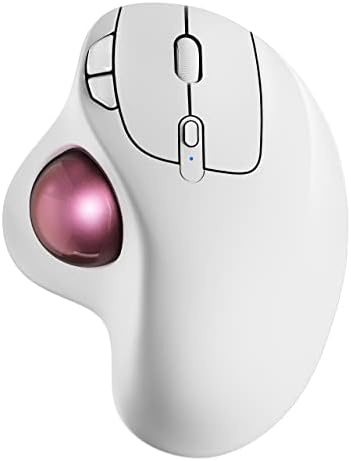
- Ergonomic Design with Smooth Thumb Control: Move your cursor by the smooth trackball instead of moving your wrist and ar…
- Precise Tracking with Adjustable DPI: Nulea trackball mouse provides precise cursor movement for exceptional accuracy an…
- True Wireless Freedom: Connect up to 3 devices by either bluetooth or USB dongle. Switch easily between them by the butt…
The Nulea M501 is a thumb-operated trackball that aims to give you the basics for less. It has a curved, ergonomic body and a ball on the left side that your thumb rolls. It has a built-in rechargeable battery, so you never buy AAs. You charge it from a computer USB port or a 5V charger.
The M501 can connect to three devices. You can use Bluetooth or a 2.4GHz USB receiver. The receiver is stored in a slot on the bottom of the mouse, which keeps it safe when you travel. Amazon lists it as compatible with PC, laptop, iPad, Mac, Windows, and Android. A button lets you switch between devices.
It has six buttons and several DPI levels for cursor speed. Here is an important catch. Amazon notes that the buttons on this mouse are not programmable. If you want to remap buttons with software, look at the Logitech or Kensington picks. If you just want a simple, working trackball, that may not matter to you.
In wireless mode, the mouse goes to sleep after 30 minutes of inactivity, which helps save battery. Nulea sells it in several colors, so you can match your desk. Amazon showed a Best Seller label on this listing in the computer trackballs category when we checked. Labels change, so check the page. Nulea also sells related models, such as the M505, M511, and M512. Make sure you are on the M501 page.
Who is it for? Budget-minded buyers, students, and anyone who wants to try a thumb trackball without a big commitment. It is also handy for people who switch between a laptop, a tablet, and a desktop.
Compared with the Logitech ERGO M575S, the Nulea is rechargeable, while the Logitech uses a long-life AA battery. The Logitech has stronger software and brand support. The Nulea is the one to pick if you want to charge instead of swapping batteries.
Key Specifications
| Spec | Details |
|---|---|
| Brand and model | Nulea M501 Wireless Trackball Mouse |
| Type | Thumb-operated trackball |
| Connection | Bluetooth or 2.4GHz USB receiver; pairs with 3 devices |
| Power | Built-in rechargeable battery (USB charging) |
| Buttons | 6 buttons (not programmable, per Amazon) |
| Cursor speed | Multiple DPI levels |
| Receiver storage | In a slot on the bottom of the mouse |
| Sleep mode | Sleeps after 30 minutes idle in wireless mode |
| Compatibility | PC, Mac, iPad, Windows, Android |
Pros and Cons
| ✔ Pros | ✖ Cons |
|---|---|
| Rechargeable, so no AA batteries | Buttons are not programmable |
| Three-device pairing | Less software support than Logitech |
| Receiver stores in the mouse | No tilt adjustment listed |
| Many color choices | Right-handed design |
| Budget-friendly thumb trackball |
Buyer Sentiment: Popular among budget shoppers, with a Best Seller label seen in the category.
What Buyers Are Saying: Shoppers often say it is a good starter trackball for the money. Many like the rechargeable battery and the easy pairing. Some wish the buttons could be remapped.
7. Kensington SlimBlade Pro (K72080WW) — Best For: Premium Finger-Operated Control

- Includes choice of Bluetooth, 2.4GHz wireless and wired connection options for maximum flexibility. Compatible with Blue…
- Rechargeable battery provides 4 months battery life with single charge via USB-C port
- Low-profile shape allows all-day comfort for both right-handed and left-handed users. The trackball takes up less desk s…
The Kensington SlimBlade Pro is the high-end finger-operated trackball on our list. It has a large 55mm ball that sits low in a sleek body. The design is ambidextrous and slim. It looks more like a modern desk tool than an old-school trackball.
The big idea is dual-sensor tracking. Two sensors follow the ball, which lets you scroll by twisting the ball. Kensington calls this ball-twist scrolling. You twist the ball with your fingers, and the page moves up or down. There is no wheel and no ring. It feels very different from other trackballs, and it takes a little practice.
It offers three ways to connect. You can use Bluetooth (the listing says BT 4.0 and 5.0), a 2.4GHz wireless receiver, or a wired USB-C cable. That is a lot of flexibility. The battery is rechargeable through USB-C. Amazon’s description says it can last about four months per charge. Real life will vary with use.
The listing shows eight programmable buttons through KensingtonWorks software. A retailer spec sheet lists the size at about 5.8 by 6.0 by 2.2 inches and the weight at around 10 ounces. It also lists 1000Hz polling.
A stock note. Kensington’s own store listed the SlimBlade Pro as out of stock when we checked, while Amazon had a live listing. Click through to confirm it is available. Amazon also lists a bundle with a wrist rest and a bundle with another Kensington trackball. Make sure you are on the single K72080WW listing if that is what you want.
Who is it for? Fans of finger-operated trackballs who want wireless freedom and a refined look. It suits desk workers who value flexibility and have room in the budget. If you want a true premium finger-operated trackball, this is the pick.
Key Specifications
| Spec | Details |
|---|---|
| Brand and model | Kensington SlimBlade Pro (K72080WW) |
| Type | Finger-operated trackball, ambidextrous |
| Ball | 55mm with dual-sensor tracking |
| Scrolling | Ball-twist scrolling |
| Buttons | 8 programmable (KensingtonWorks software) |
| Connection | Bluetooth, 2.4GHz receiver, or wired USB-C |
| Power | Rechargeable; Amazon says about 4 months per charge |
| Size and weight | About 5.8 x 6.0 x 2.2 inches; about 10 ounces (retailer spec) |
Pros and Cons
| ✔ Pros | ✖ Cons |
|---|---|
| Three connection options in one device | Priced at the top end of this list |
| Large 55mm ball with dual sensors | Twist scrolling takes practice |
| Eight programmable buttons | No built-in scroll ring or wheel |
| Rechargeable with long battery claims | May show as out of stock at times |
| Sleek, ambidextrous design |
Buyer Sentiment: Well regarded among finger-trackball fans who want a premium wireless model.
What Buyers Are Saying: Owners often praise the ball size and the connection options. The twist-scroll feature gets mixed reactions, since it takes a bit of time to feel natural. Some mention that the price is high compared with simpler trackballs.
How to Choose the Right Trackball Mouse (Buyer’s Guide)
A trackball is a personal tool. What feels great to one person may feel odd to another. Use these tips to find your match.
1. Pick Thumb or Finger Control
Start here. If you want the smoothest switch from a regular mouse, a thumb trackball is often the easier first step. Your hand rests like it would on a mouse, and only your thumb moves the ball. If you want a bigger ball and more symmetry, a finger trackball may suit you better. Finger models tend to be larger and often work for both hands.
Not sure which is right? Think about your thumb. Does it tire easily? Then a finger trackball may feel kinder. Do your fingers feel stiff? Then a thumb trackball may help.
2. Check Handedness
Most thumb trackballs are built for the right hand. If you are left-handed, look at the Kensington Expert, Orbit, or SlimBlade Pro. Those have symmetrical shapes made for both hands.
3. Match Ball Size to Hand Size
Ball sizes range from about 40mm to 55mm. Bigger balls offer smoother rolls and more control. Smaller balls fit smaller hands and tight desks. Large hands often prefer the ELECOM HUGE (52mm) or the Kensington Expert (55mm). Smaller hands may prefer the Logitech M575S or the Kensington Orbit (40mm).
4. Decide on Wired or Wireless
Wired trackballs, like the Kensington Expert and Orbit, never need charging. They are great for a fixed desk. Wireless trackballs, like the Logitech picks, the Nulea, the ELECOM HUGE, and the SlimBlade Pro, give you a cleaner desk and more freedom. If you use a laptop, a tablet, or two computers, wireless is a big help.
5. Look at Buttons and Software
Buttons make your day faster. The ELECOM HUGE offers eight. The SlimBlade Pro offers eight. The Logitech MX Ergo S offers six. If you love shortcuts, check the software. Logitech Options+, KensingtonWorks, and ELECOM Mouse Assistant let you remap buttons. The Nulea does not.
6. Think About Tilt and Posture
A tilted hand can feel less twisted. The MX Ergo S has a built-in tilt. Others sit flat. OSHA says there are no specific standards for computer workstations, but it offers guidance on setting up your desk for comfort (see OSHA’s computer workstation page). The CDC’s NIOSH explains that ergonomics is about fitting work to the person, which is the idea behind a trackball (read the NIOSH overview). Pair your trackball with a good chair, desk, and screen height for the best results. Our home office desk setup checklist walks through those steps.
7. Check Battery and Charging
Logitech’s M575S runs on one AA battery for up to 18 months, based on Logitech’s claim. The MX Ergo S, the Nulea, and the SlimBlade Pro recharge. Pick the style you prefer. Rechargeable models save on batteries, but you must plug them in. Battery models are simple, but you must replace the cell.
8. Think About Cleaning
All trackballs collect oil and dust. Kensington suggests wiping the ball and the frame with a damp cloth or rubbing alcohol and letting them dry (see Kensington’s cleaning guide). Plan to clean your trackball every few weeks, or whenever the cursor feels sticky.
9. Set a Budget Tier
Trackballs come in rough tiers. Entry models, such as the Nulea M501 and the Kensington Orbit, give you the basics. Mid-range models, such as the Logitech M575S, add polish and software. Premium models, such as the MX Ergo S and the SlimBlade Pro, add tilt, multiple connection types, and more buttons. Click any link above to see the current price on Amazon.
Quick Picks by Situation
Still not sure? Match your situation to a pick below.
- You work in an office all day. Choose the Logitech MX Ergo S. It has quiet clicks, tilt, and strong software.
- You are new to trackballs. Choose the Logitech ERGO M575S. It is simple, and it lasts a long time on one battery.
- You are left-handed. Choose the Kensington Expert Mouse, the Kensington Orbit, or the Kensington SlimBlade Pro. All three are ambidextrous.
- You have large hands. Choose the ELECOM HUGE or the Kensington Expert Mouse. Both have big balls.
- You have a tiny desk. Choose the Kensington Orbit or the Logitech M575S. They are the most compact picks here.
- You love shortcuts. Choose the ELECOM HUGE or the Kensington SlimBlade Pro. Both offer eight buttons you can set up.
- You switch between devices. Choose the Nulea M501, the Logitech MX Ergo S, or the SlimBlade Pro. All three pair with more than one device.
- You want no batteries and no charging. Choose the Kensington Expert Mouse or the Kensington Orbit. Both are wired.
- You are on a tight budget. Choose the Nulea M501 or the Kensington Orbit.
Who Should Skip a Trackball?
Trackballs are not for everyone. That is fine. Here are a few cases where a regular mouse may serve you better.
- Fast-action gamers. Quick flicks and sharp turns are easier with a regular mouse.
- People who hate a learning curve. If you need to be at full speed on day one, a trackball may frustrate you.
- Heavy drawing and photo editing. Some artists like trackballs. Many still prefer a pen tablet or a regular mouse for fine strokes.
- Anyone who dislikes cleaning. Trackballs need a wipe-down every so often.
On the other hand, if you want less arm travel and a tidy desk, a trackball is worth a try. Buy from a place with an easy return window, so you can test it with no stress.
How to Set Up Your Desk for a Trackball
A good setup makes any trackball feel better. Try these steps.
- Put the trackball close. Place it right next to your keyboard. You should not reach far.
- Keep your elbow near 90 degrees. Your forearm should rest in a relaxed, level line.
- Keep your wrist straight. Do not bend it up or down. A straight wrist is a comfortable wrist.
- Support your palm, not your wrist. If you use a wrist rest, let it support your palm. Do not press the wrist into a hard edge.
- Raise your screen. The top of your screen should sit near eye level. This keeps your neck relaxed. A laptop stand can help. See our guide to adjustable laptop stands if you work on a laptop.
- Use a chair that fits. A good chair lets your arms rest naturally at the desk. Browse our ergonomic chair reviews for ideas.
Common Trackball Problems and Easy Fixes
Most trackball problems are small. Here are the usual ones.
The cursor feels jumpy or sticky. Dirt and oil on the ball are the most common cause. Clean the ball and the frame. Kensington says to use a damp cloth or rubbing alcohol and let everything dry.
The ball feels rough. Oils from your fingers can build up on the ball over time. Wipe it down. Kensington also suggests a tiny amount of oil-based lotion for a smoother roll on its models. Check your own model’s guide first.
The cursor stops moving. Look at the sensor window and the ball support points. Dust can block them. Clear them with a soft cloth or a short burst of air.
The wireless link drops. Move the USB receiver closer. A short USB extension cable can help if your port is behind the computer. Also check the battery level.
The ball will not come out. Many models let you push the ball out through a small hole on the underside. Check your manual for the right method. Catch the ball so it does not drop and dent.
Your hand feels tired. Slow down the cursor speed. Take short breaks. Make sure your wrist is straight and your forearm is supported. If you feel pain, numbness, or tingling, stop and talk to a health professional.
Trackball Terms Explained
New to trackballs? These terms show up in many listings.
- Ambidextrous. The shape works for both hands.
- DPI. This tells you how fast the cursor moves for each roll of the ball. A higher number means a faster cursor.
- Scroll ring. A ring around the ball that you twist to scroll.
- Twist scrolling. You twist the ball itself to scroll.
- Logi Bolt. Logitech’s secure USB receiver.
- Bluetooth LE. A low-power Bluetooth type that saves battery.
- 2.4GHz receiver. A small USB plug that links the mouse to your computer.
- Ruby bearings. Tiny support points under the ball that help it roll smoothly.
- Palm rest. A pad where the heel of your hand rests.
Tips to Get Used to a Trackball
Most people feel clumsy for the first few days. That is normal. These tips can help.
- Start slow. Use your trackball for email and web pages first. Save big design work for later.
- Lower the cursor speed. A slower DPI gives you more control at first. Raise it as you improve.
- Be patient for one to two weeks. Most people adapt in that time. Do not judge it on day one.
- Remap buttons. Put back and forward under easy reach. Use the middle button for scrolling or shortcuts.
- Rest your hand. A wrist rest can help if you like to rest your palm. Keep your wrist straight.
- Take breaks. Stand, stretch, and shake out your hands every 30 to 45 minutes.
- Keep it clean. A sticky ball makes learning harder. Wipe it down regularly.
- Talk to a doctor if pain continues. A trackball is a comfort tool, not a medical treatment. If you have ongoing pain, numbness, or tingling, see a health professional.
If a trackball is not for you, you can still upgrade your pointing device. See our guides to Lenovo wireless mice on Amazon and wireless mice on Amazon for other options.
Brand Snapshot: Logitech vs. Kensington vs. ELECOM vs. Nulea
Four brands make up our list. Each has a different style. Here is a quick look at how they compare.
Logitech leads in thumb-operated trackballs. Its two models here, the MX Ergo S and the ERGO M575S, share a familiar shape. Both connect with Bluetooth or the Logi Bolt receiver. Both work with Logitech’s software for button setup. If you want a polished, well-supported thumb trackball, Logitech is the safe bet.
Kensington leads in finger-operated trackballs. It has three picks here: the Expert Mouse, the Orbit, and the SlimBlade Pro. All three are ambidextrous. The Expert and Orbit are wired and use a scroll ring. The SlimBlade Pro is wireless and uses twist scrolling. Kensington also has a helpful cleaning guide on its site. Note that its software does not currently support Windows ARM computers.
ELECOM is a Japanese brand known for large, feature-rich trackballs. The HUGE offers eight buttons, a big ball, and a big palm rest. It suits power users with larger hands. ELECOM also sells other models, including the DEFT PRO and the HUGE Plus, which Amazon lists. They are worth a look if you want Bluetooth.
Nulea is a value-focused brand. The M501 gives you a rechargeable thumb trackball with three-device pairing at a gentle price tier. The trade-off is less software support and no button remapping.
Which Brand Fits You?
- Want the most polish? Pick Logitech.
- Want a big ball and both-hand comfort? Pick Kensington.
- Want lots of buttons and a roomy body? Pick ELECOM.
- Want the simplest, most affordable start? Pick Nulea.
What We Could Not Verify (and What You Should Check)
Honesty builds trust, so here is a plain list of limits. We researched these trackballs through Amazon listings, maker pages, and feedback patterns. We did not buy or test them. A few details need a quick look on the live page before you buy.
- Stock. The Kensington Expert Mouse and the SlimBlade Pro showed as out of stock on Kensington’s own store. Amazon still listed them when we checked. Confirm they can ship.
- Battery life. Battery claims for the Logitech MX Ergo S varied between sources. We did not print a number. Check the listing for the latest claim.
- Included items. Check what is in the box, such as batteries, cables, and wrist rests.
- Version and color. Many of these trackballs come in several versions. Make sure the model number matches the one you want.
- Ratings and reviews. Star ratings and review counts change daily. We do not list them. Read the newest reviews on each page.
Treat our picks as a strong starting point, not the final word.
Frequently Asked Questions
Are trackball mice better than regular mice?
It depends on you. Trackballs keep your hand still, which means less arm and wrist movement. They also need less desk space. But they take time to learn, and some people prefer the sweeping motion of a regular mouse. Try one with a good return policy.
Which is better: a thumb or finger trackball?
Neither wins for everyone. Thumb trackballs feel closer to a regular mouse and are common in right-handed designs. Finger trackballs often have bigger balls and symmetrical shapes. Think about which of your digits feels more comfortable for small, steady moves.
Are trackball mice good for wrist pain?
Many people choose trackballs because they move the wrist less. That said, we cannot promise relief. Every body is different, and wrist pain has many causes. If you have ongoing pain, numbness, or tingling, talk to a health professional. A trackball works best with good desk posture and regular breaks.
How long does it take to get used to a trackball?
Most people report a learning period of a week or two. The first few days often feel awkward. Using a slower cursor speed and starting with simple tasks can help.
Can you game with a trackball?
You can, but it is not common. Trackballs are great for strategy games and casual play. Fast shooters often favor a regular gaming mouse, since quick flicks are easier with a mouse. A trackball is built for comfort and precision more than speed.
How do I clean a trackball mouse?
Turn the mouse over and remove the ball if your model allows it. Wipe the ball and the frame with a damp cloth or rubbing alcohol, then let them dry. Kensington also suggests that you can add a tiny amount of oil-based lotion for smoother rolling, but check your model’s guide first. See the Kensington cleaning guide for steps.
Are trackball mice good for left-handed users?
Yes, but you must pick the right model. Most thumb trackballs are right-handed. The Kensington Expert Mouse, Kensington Orbit, and Kensington SlimBlade Pro are ambidextrous, so they suit left-handed users well.
Do trackball mice work with Mac, iPad, and Chromebook?
Many do. The Logitech picks list PC and Mac support. The Nulea lists PC, Mac, iPad, and Android support. The Kensington models list Windows, macOS, and ChromeOS support. Software features may be limited on some systems, so check the listing for your device.
Final Verdict: Which Trackball Mouse on Amazon Should You Buy?
The best trackball mouse on Amazon depends on how you work. Here is the quick summary.
- Best overall: the Logitech MX Ergo S. Adjustable tilt, quiet clicks, and USB-C charging make it our top thumb-trackball pick.
- Best value: the Logitech ERGO M575S. Easy to start, with long battery life.
- Best finger-operated classic: the Kensington Expert Mouse. A big ball and a scroll ring in a symmetrical body.
- Best for lefties and small desks: the Kensington Orbit.
- Best for big hands and shortcuts: the ELECOM HUGE.
- Best budget rechargeable: the Nulea M501.
- Best premium finger-operated: the Kensington SlimBlade Pro.
Start by choosing thumb or finger control. Then check handedness, ball size, and connection type. Give your new trackball one to two weeks before you decide. Click any link above to see current prices and recent reviews on Amazon. Want more desk gear ideas? Browse our mouse reviews.
As an Amazon Associate I earn from qualifying purchases.

MD.HASAN is an experienced SEO expert and amazon products review writer passionate about helping people find right products on amzon for buy without confusion. With 4 years of hands-on experience in content strategy and search engine optimization, he specializes in writing SEO-friendly blog posts that rank, engage, and convert.


