
Affiliate disclosure: As an Amazon Associate, Tech Rig Review earns from qualifying purchases. Links on this page may be affiliate links, at no extra cost to you.
Our complete home office desk setup checklist covers 30 things to get right — desk, chair, monitor, lighting, and cables — with real Amazon picks for each.
Most home office setups aren’t bad because of one big mistake. They’re uncomfortable because of ten small ones stacked on top of each other: a monitor that’s two inches too low, a chair with no lumbar support, cables tangled under the desk, a webcam propped on a stack of books. None of these feel urgent on their own. Together, they’re why your neck hurts by 3pm and your video calls look like you’re filming from a basement.

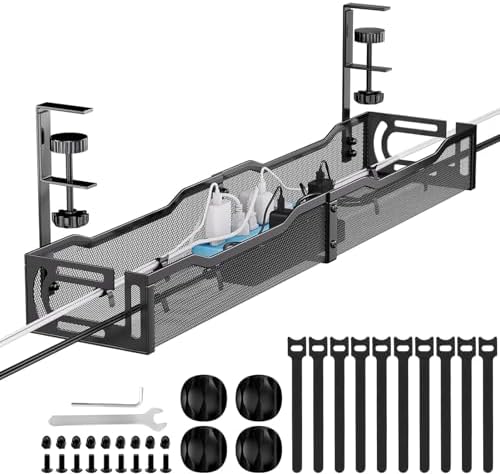



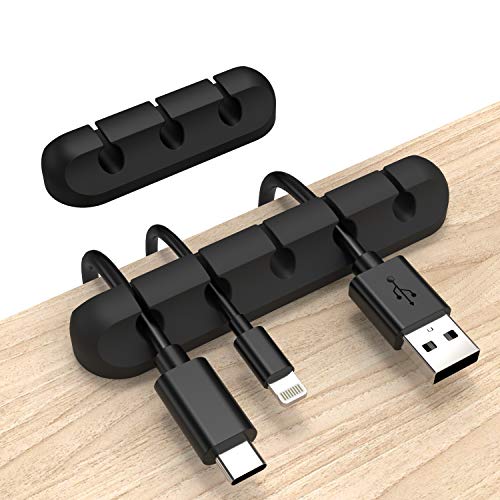


This home office desk setup checklist walks through all 30 things worth getting right, organized by category: the desk and foundation, seating and ergonomics, your monitor setup, input devices, audio and video for calls, power and cable management, and lighting. For each item, we explain why it matters and, where a specific product genuinely helps, we point to a real option on Amazon with its actual product page — not a guess at a plausible-sounding ASIN.
We built this checklist by researching real specs, manufacturer claims, and official ergonomics guidance rather than claiming to have hands-on tested every product ourselves. That’s a more honest starting point than pretending we’ve personally sat in forty different office chairs. Let’s get your desk in order.
Table of Contents
The Full Checklist at a Glance
Before diving into the details, here’s the complete 30-item home office desk setup checklist in one place. Jump to any section below for the full explanation and product picks.
Desk & Foundation: 1) Right desk size for your room · 2) Sit-stand desk if you’re at it daily · 3) A real desk mat · 4) Knee and chair clearance · 5) Desk position relative to windows
Seating & Ergonomics: 6) A chair with real adjustability · 7) Chair height matched to desk height · 8) A footrest if your feet don’t reach the floor · 9) Correct elbow and wrist angle · 10) Built-in standing or stretch breaks
Monitor & Display: 11) Monitor at eye level with an arm · 12) An eye-care monitor · 13) Correct monitor distance · 14) Reducing glare before brightness · 15) Dual monitors only if your workflow needs them
Input Devices: 16) A proper external keyboard and mouse · 17) Wrist support while typing · 18) A laptop stand if working from a laptop
Audio & Video for Calls: 19) A dedicated webcam · 20) A headset instead of laptop audio · 21) Lighting your face for calls
Power & Cable Management: 22) A real docking station · 23) A surge protector, not just a power strip · 24) Cable management · 25) Testing your Wi-Fi from your actual seat
Lighting & Environment: 26) A dedicated desk lamp · 27) Room temperature and airflow · 28) A personal touch
Final Touches: 29) A final cable and clutter sweep · 30) Revisiting the setup after a week of real use
Part 1: The Desk & Foundation (Items 1–5)
1. Pick the right desk size for your room — don’t just grab the first one you see


Before anything else, measure your space. A desk that’s too small forces your monitor, keyboard, and documents into an uncomfortable pile. A desk that’s too big eats the room. As a rough rule, aim for at least 24 inches of depth and enough width to fit your monitor setup with a few inches of breathing room on each side. Measure twice; desks are annoying to return.
2. Upgrade to a sit-stand desk if you’re at it more than a few hours a day
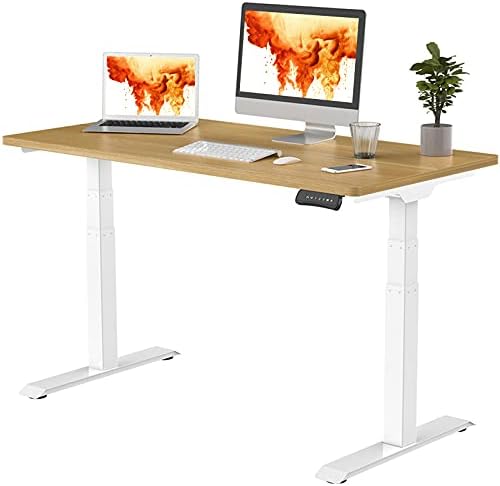
- SEAMLESS SOLID SLAB: Unlike most standard standing desks that are spliced together with 2 or more pieces, our 48” x 30” …
- 3 STAGES LIFT SYSTEM: Compare with 2 stages lift system, 3 stages standing desk has a 30% wider range of lifting space, …
- QUIET DUAL MOTORS with 65% MORE LOADING CAPACITY: Lift and lower the electric standing desk with confidence even in the …
If you work at your desk most of the day, a height-adjustable desk is one of the highest-impact upgrades you can make. The FLEXISPOT E7 Pro Dual Motor Electric Standing Desk uses a dual-motor lift system with memory height presets, so switching between sitting and standing takes one button press instead of a manual crank. It’s also the kind of desk that shows up repeatedly in independent testing roundups for its stability at full height, which matters more than people expect — a wobbly standing desk is worse than no standing desk at all. If you want a deeper comparison of models at different price points, our guide to the best standing desks on Amazon breaks down several options by budget and features.
What stands out on paper:
- Dual-motor lift for smoother, more stable height transitions than single-motor desks
- Programmable height presets so you don’t re-set your sit/stand positions every day
- Rated for a desktop weight capacity high enough for a dual-monitor setup plus accessories
3. Protect the surface with a proper desk mat


A desk mat does two things: it protects the surface underneath your keyboard and mouse from wear, and it visually defines your “work zone” so the rest of your desk doesn’t creep into clutter. The KTRIO Large Desk Mat is oversized enough to cover a full keyboard-and-mouse area, with a stitched edge that keeps it from fraying and a non-slip rubber base so it doesn’t slide around mid-typing.
Why it’s worth the small cost: a mat this size means your mouse never runs out of room mid-swipe, the smooth-weave surface tracks consistently for both optical and laser mice, and a water-resistant coating means a spilled coffee is a wipe-down instead of a ruined desk finish.
4. Leave clearance for your knees, legs, and chair
This sounds obvious until you’ve bought a desk with a center drawer or support bar that blocks your knees the moment you sit down. Before buying, check the under-desk clearance height and width against your chair’s armrests, especially if you’re tall or use a chair with wide arms.
5. Position the desk relative to windows and light sources, not just outlets
Where your desk sits in the room affects everything downstream — screen glare, how tired your eyes get, and how you look on video calls. As a starting point, position your monitor perpendicular to windows rather than directly facing or backing onto them. Facing a window puts harsh light behind your screen; backing onto one puts harsh light behind you on calls.
Part 2: Seating & Ergonomics (Items 6–10)
6. Get a chair with real adjustability, not just cushioning


![Ergonomic Office Chair Comfy [#1 in Tests]](https://m.media-amazon.com/images/I/41pqi7f5W5L._AC_.jpg)


A soft chair isn’t the same as an ergonomic one. What actually matters is adjustability: seat height, lumbar support, and armrest position. The Hbada Ergonomic Office Chair includes flip-up armrests, adjustable lumbar support, and a breathable mesh back, which covers the core adjustability points without the premium price tag of executive-tier chairs.
A few things worth checking when a chair claims “ergonomic”: can you adjust the seat height independently of the backrest recline, does the lumbar support sit at the small of your back rather than higher up, and do the armrests fold or retract if they’d otherwise block you from sliding under the desk. The Hbada covers all three, with PU silent caster wheels as a bonus for anyone working on hardwood or tile.
7. Match your chair height to your desk height, not the other way around
Set your chair height first so your elbows sit at roughly 90 degrees when your hands are on the keyboard, then adjust your desk or monitor to match — not the reverse. If your feet don’t reach the floor once the chair’s at the right height, that’s what a footrest is for (see #8).
8. Add a footrest if your feet don’t rest flat on the floor

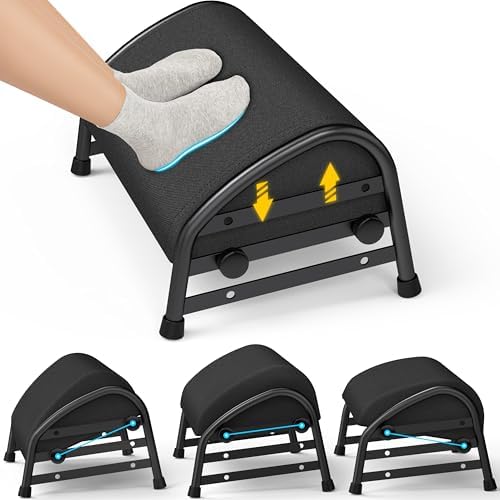


This is a small, cheap fix that a surprising number of people skip. If raising your chair to the correct keyboard height leaves your feet dangling, a footrest closes that gap. The HUANUO Adjustable Foot Rest offers three height positions and a textured surface, and it’s pre-assembled out of the box. The slight rocking tilt also gives your ankles something to do during long sitting stretches instead of staying locked in one fixed position all day, which some people find helps circulation on days with minimal movement.
9. Check your elbow and wrist angle while typing
Your forearms should be roughly parallel to the floor and your wrists should stay straight, not bent up or down, while typing. If you notice your wrists angling upward toward the keyboard, your desk is likely too high relative to your chair — adjust the chair first, then use a footrest to compensate if needed.
10. Build in standing or stretch breaks, even without a standing desk
If a sit-stand desk isn’t in the budget right now, you can still interrupt long sitting stretches. Standing up, walking for two minutes, or simply shifting posture every 30–45 minutes measurably reduces the discomfort and fatigue that build up over a full workday — a pattern echoed in NIOSH’s own internal research on sit-stand interventions.
Part 3: Monitor & Display Setup (Items 11–15)
11. Get your monitor to eye level with an arm, not a stack of books

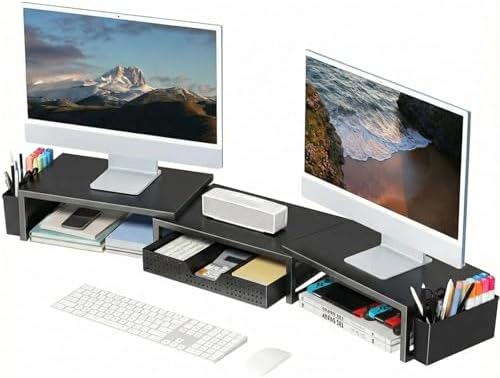
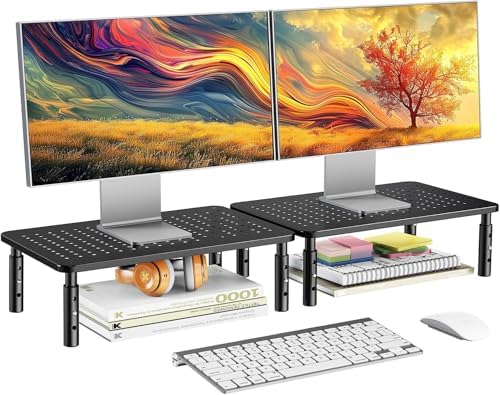


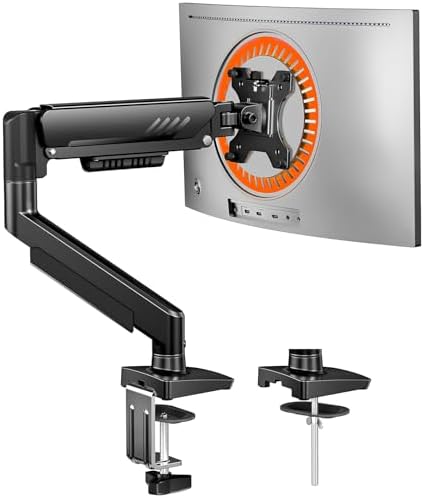
This is the single most common ergonomic mistake in home offices. According to OSHA’s Computer Workstations eTool, the top of your monitor should sit at or just slightly below eye level, with the screen about an arm’s length away. A monitor arm makes this adjustable and repeatable, instead of guessing with risers. The Ergotron LX Single Monitor Arm supports monitors up to 34 inches and adjusts height, tilt, and distance with one hand, using a gas-spring mechanism that holds position without drifting back down over time — a common failure point on cheaper arms. It also frees up the desk space a traditional stand would otherwise occupy, which matters more than it sounds like once you’ve also got a laptop, a document, and a coffee cup competing for the same square footage. For a broader comparison of arms and risers at different price points, see our breakdown of the best Amazon monitor stands for home offices.
12. Choose a monitor that doesn’t wreck your eyes by 4pm
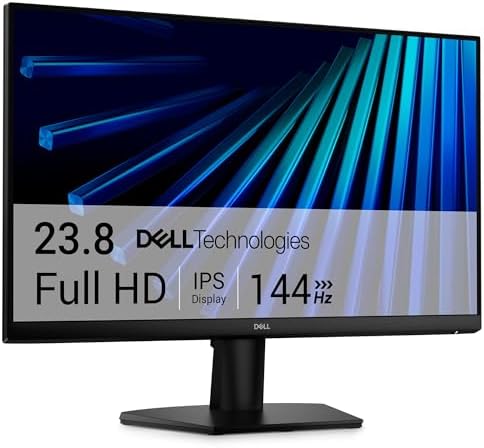


Not all monitors are equal on eye strain. Features like flicker-free backlighting and a certified blue-light filter make a real difference over an 8-hour day, especially compared to budget panels with no eye-care certifications at all. If you’re shopping for a new display specifically with eye comfort in mind, our dedicated guide to the best monitors for eye strain on Amazon walks through several certified options.
13. Set your monitor distance correctly — closer isn’t always better
The Mayo Clinic’s office ergonomics guide recommends keeping your screen between 20 and 40 inches from your eyes, roughly an arm’s length. Too close strains your eyes over time; too far forces you to lean in, which undoes any ergonomic benefit from your chair and desk setup.
14. Reduce glare before you reduce brightness
If your screen looks washed out or hard to read, your instinct might be to crank up the brightness. Try repositioning the monitor relative to light sources first — glare from a window or overhead light is a positioning problem, not a brightness problem, and cranking brightness to compensate just adds more eye strain on top of the glare.
15. Consider a dual-monitor setup if your workflow actually needs it


A second monitor is genuinely useful if you regularly reference one window while working in another — coding with documentation open, or writing with research pulled up beside it. If your work is mostly single-tasking (email, writing, video calls), a single larger monitor often serves you better than splitting attention across two smaller ones.
Part 4: Input Devices (Items 16–18)
16. Upgrade from your laptop’s built-in keyboard and trackpad

- Reliable Plug and Play: The USB receiver provides a reliable wireless connection up to 33 ft, so you can forget about dr…
- Type in Comfort: The design of this keyboard creates a comfortable typing experience thanks to the low-profile, quiet ke…
- Durable and Resilient: This full-size wireless keyboard features a spill-resistant design, durable keys and sturdy tilt …
Laptop keyboards and trackpads are a compromise built for portability, not comfort during a full workday. A proper external keyboard and mouse combo lets you position your hands at a comfortable width and keeps your wrists straighter. The Logitech MK270 Wireless Keyboard and Mouse Combo connects both devices through a single USB receiver and runs on standard AA/AAA batteries for months at a time, which is a nice break from charging yet another Bluetooth peripheral. The full-size keyboard layout includes a numeric keypad and eight programmable shortcut keys, and because both devices share one tiny USB receiver, you’re not burning two full USB ports just to go wireless.
17. Give your wrists support, not just a flat surface
Wrist strain usually comes from bending your wrists upward to reach the keyboard rather than keeping them level. A desk mat with a built-in wrist support area, like the KTRIO mat recommended in item #3, naturally keeps your wrists in a neutral position while you type.
18. Use a laptop stand if you’re working primarily from a laptop
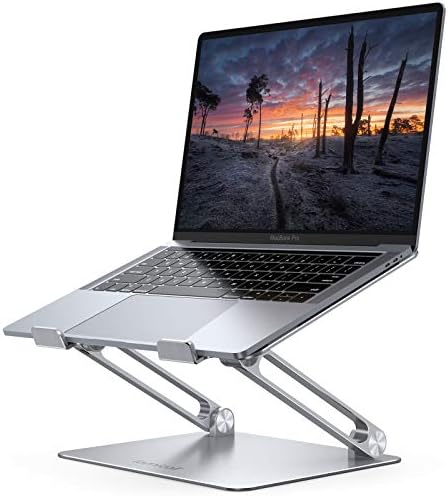


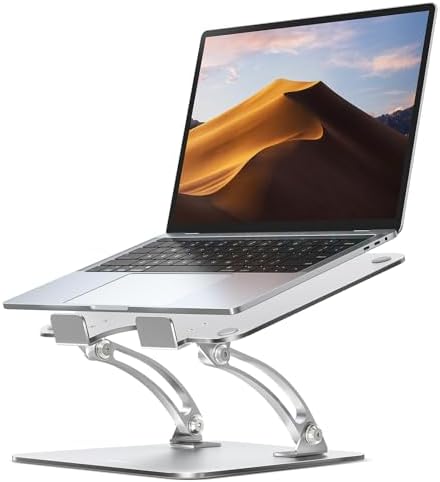
If you’re not using an external monitor, at minimum raise your laptop screen to a better eye line with a dedicated stand, then pair it with an external keyboard and mouse so your hands aren’t forced into the cramped position a raised laptop creates. The Nulaxy Ergonomic Laptop Stand is fully adjustable for height and angle, made from aluminum for better heat dissipation, and folds flat for easy storage if you need to reclaim desk space. The detachable design also means it packs down small enough for a bag, which is handy if your “home office” sometimes doubles as a coffee shop or coworking desk.
Part 5: Audio & Video for Calls (Items 19–21)
19. Get a real webcam if you’re on video calls regularly

Built-in laptop webcams are usually mounted at an unflattering low angle and struggle in anything but perfect lighting. The Logitech HD Pro Webcam C920 shoots in full 1080p with autofocus and built-in light correction, and it clips onto a monitor at a proper eye-level angle instead of looking up your nose from a laptop lid. It’s also been around long enough that it’s broadly compatible with just about every major video calling platform without any extra driver hunting.
20. Use a dedicated headset instead of laptop speakers and mic

- PROFESSIONAL HEADSET – The Jabra Evolve 40 pro headset is built for greater productivity and amazing sound quality for c…
- BE MORE PRODUCTIVE – Stay in the zone and avoid interruptions thanks to the busylight that automatically turns on during…
- FLEXIBLE CONNECTIVITY – The 3.5mm jack lets you connect this Jabra headset to your personal device, such as a smartphone…
Laptop speakers and built-in microphones pick up room echo, keyboard clatter, and background noise far more than a headset does. The Jabra Evolve 40 Professional Wired Headset is built specifically for calls, with a noise-cancelling microphone and comfortable padding for long meeting days, and it’s certified to work cleanly with major call platforms. The stereo sound also makes it usable for music between meetings, so it’s not a single-purpose accessory gathering dust the rest of the day.
21. Light your face for calls, not just your room

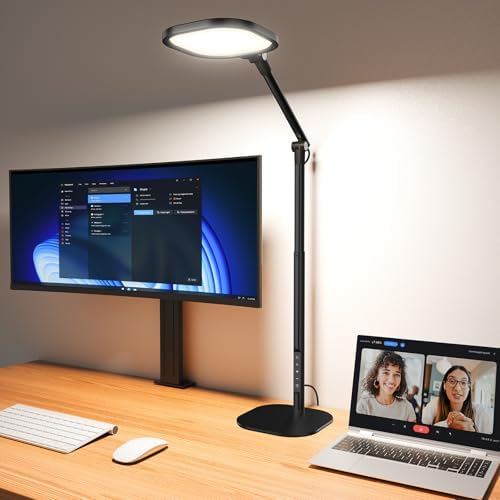


The same desk lamp that lights your keyboard (see item #26) can double as fill light for video calls if it’s positioned in front of you rather than behind. If you’re consistently backlit by a window during calls, closing the blinds and relying on a front-facing lamp instead will fix it instantly.
Part 6: Power, Connectivity & Cable Management (Items 22–25)
22. Get a real docking station if you’re working from a laptop

- Massive Expansion: Turn one of your laptop’s USB-C ports into 11 with a 10 Gbps USB-C data port, a 10 Gbps USB-A data po…
- Move Files Faster: With a 10 Gbps USB-C port, a 10 Gbps USB-A port, dual 480 Mbps USB-A ports, and 104 MB/s microSD / SD…
- Multi-Monitor Display: Connect to the DisplayPort and HDMI port to enjoy crystal-clear streaming or mirroring across 2 d…
A single USB-C docking station lets you connect your monitor, keyboard, mouse, and charger through one cable instead of juggling four separate connections every time you sit down. The Anker 565 USB-C Hub (11-in-1) handles dual 4K displays, multiple USB-A and USB-C ports, Ethernet, and SD card slots in one compact unit, with up to 85W of pass-through power delivery so it charges your laptop at the same time it’s running your peripherals. That one-cable-in, everything-connected setup is the difference between sitting down and working immediately versus plugging in four separate cables every morning.
23. Use a real surge protector, not a basic power strip

- 2160 Joules surge protection energy rating
- 8 outlet surge protector power strip
- 6 foot power cord with flat end 90 degree space saving plug
A plain power strip just splits one outlet into several; it does nothing to protect your equipment from a power spike. The APC Power Strip Surge Protector (PH8U2) offers 2160 joules of surge protection across eight outlets plus two USB charging ports, which is a meaningful difference if you’re protecting a monitor, dock, and computer that would be expensive to replace after a surge. It also comes with a flat plug and a six-foot cord, which matters more than it sounds like if your only nearby outlet is behind a desk leg or furniture.
24. Corral your cables before they become a tripping hazard and a mess
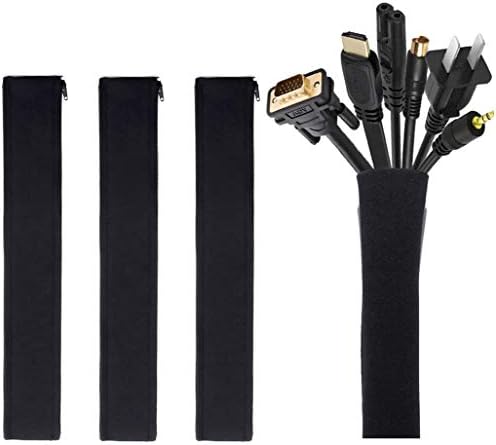
- Set of 4, each 19-20″ long, 1.2″ diameter when zipped up. Flexible neoprene cable sleeve with zip-up solution manages an…
- Form-fitting neoprene stretchy material allows for multiple cables and flexibility (each sleeve can hold up to 8-10 cabl…
- Easy to use, just gather cables together, wrap the sleeve around and zip-up, perfect for home and office use
Loose cables aren’t just an eyesore — they’re a real trip risk under a standing desk that moves up and down daily. A cable sleeve bundles everything into one manageable strand instead of a tangle. The JOTO Cable Management Sleeve is a flexible zip-up neoprene sleeve that can hold up to 8–10 cables and can be cut to length for a custom fit. If you need even more capacity, two sleeves zip together end to end, so it scales with a growing accessory collection instead of needing a full replacement.
25. Test your Wi-Fi signal from where you’ll actually sit
Before you finalize desk placement, run a quick speed test from your chair, not from the router’s room. Weak Wi-Fi in your home office is a common, overlooked cause of choppy video calls, and it’s far easier to fix with desk placement or a mesh extender before you’ve built your whole setup around a dead zone.
Part 7: Lighting & Environment (Items 26–28)
26. Add a dedicated desk lamp instead of relying on overhead light

- 💡【ULTRAWIDE ILLUMINATION】: BenQ e-Reading Desk Lamp utilizes OVAL-Light technology to illuminate a 35.4″ x 26.7″ (90cm x…
- 💡【2 SMART-DIMMING MODES】: Our Smart LED desk lamp uses a built-in ambient light sensor to automatically adjust the deskt…
- 💡【CUSTOMIZABLE COLORS & BRIGHTNESS】: In addition to two smart dimming modes, this lamp also offers manual adjustment fun…
Overhead lighting alone tends to create harsh contrast with your monitor and shadows on your work surface. A dedicated task lamp fills that gap. The BenQ e-Reading Desk Lamp is auto-dimming with a high color rendering index, which reduces the eye strain that comes from switching between a bright screen and a dim room. Its “brighter at the sides, darker in the middle” optical design specifically aims to cut the contrast between the lamp and your monitor, rather than just making the whole desk uniformly bright.
27. Control room temperature and airflow where you work

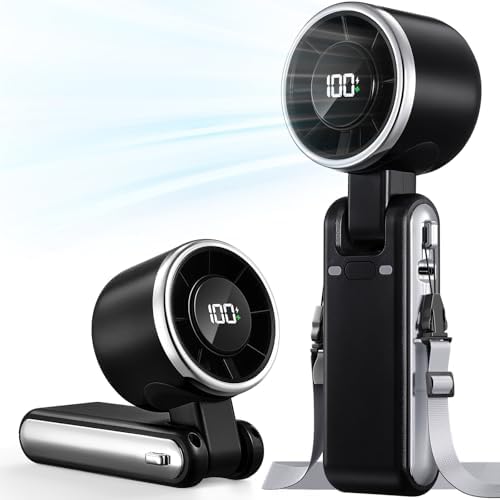


A room that’s too warm makes you sluggish; too cold and you’ll be distracted by discomfort instead of focused on work. If your home office tends to run hot or stuffy, a small desk fan or improved airflow can noticeably improve focus during long sessions — it’s a cheap fix that’s easy to overlook.
28. Add a plant or a personal touch that makes you want to sit there
A desk that looks purely functional, with zero personality, is a desk people avoid sitting at. A small plant, a photo, or any object that isn’t strictly “equipment” makes the space feel like somewhere you choose to work rather than somewhere you’re obligated to be.
Part 8: Final Habits & Finishing Touches (Items 29–30)
29. Do a final cable and clutter sweep before calling it done
Once everything’s set up, walk through it one more time: tuck loose cables into your cable sleeve, clear anything off the desk that doesn’t belong there, and confirm nothing’s blocking your knees or airflow. This final pass is where most of the “almost done” setups actually finish.
30. Revisit the setup after a week of actually using it
The first version of your setup is a draft, not a final answer. After a week of real use, you’ll notice specific friction points — maybe the monitor’s still a half-inch too low, or the mouse pad is too small for how far you move your hand. Adjust from there. A desk setup that’s been lived in for a week and tweaked is always better than one that looked perfect on day one and was never touched again.
Frequently Asked Questions
What’s the single most important thing to fix first in a home office setup?
Monitor height. Official ergonomics guidance consistently points to screen height and distance as the biggest factor in neck and eye strain, and it’s usually the cheapest thing to fix — a monitor arm or even a sturdy stack of books gets you most of the way there before you spend money on anything else.
Do I really need a standing desk, or is a regular desk fine?
A regular desk is fine if you’re disciplined about taking movement breaks throughout the day. A standing desk makes that easier by removing the friction of needing to physically get up and move somewhere else — you just change your desk height instead.
How much should I expect to spend on a full home office setup?
It varies hugely depending on what you already own. If you’re starting from a bare desk and chair, budgeting for a decent chair, a monitor arm, and basic cable management covers the highest-impact items without needing to buy everything on this list at once. A sit-stand desk and a dedicated docking station are the biggest single expenses on this checklist, so they’re reasonable items to save for and add later rather than buying on day one.
Is a mechanical keyboard worth it for a home office?
It comes down to personal preference and how much typing you do. Mechanical keyboards tend to have a more tactile, consistent feel that some people find reduces fatigue over long typing sessions, but a quality membrane keyboard like the one in a basic wireless combo is perfectly comfortable for most users.
Do blue light glasses actually help with eye strain?
The evidence on blue light glasses specifically is mixed, but reducing screen brightness, following the 20-20-20 rule (every 20 minutes, look at something 20 feet away for 20 seconds), and getting your monitor distance and height right all have clearer, better-supported effects on eye strain.
How do I stop my cables from looking like a mess under a standing desk?
Use a cable sleeve to bundle cords into one strand, and make sure that bundle has enough slack to move with the desk through its full height range without pulling taut or snagging. A cable sleeve that’s too short will fight you every time you raise the desk.
What’s the easiest upgrade that makes the biggest visible difference?
A dedicated desk lamp. It’s inexpensive, takes two minutes to set up, and immediately changes how the whole space looks and feels on video calls, in photos, and just sitting there working in the evening.
Can I build a good setup entirely from Amazon, or do I need to shop around?
You can get surprisingly far shopping entirely on Amazon for the categories covered in this checklist — desks, chairs, monitor arms, and accessories all have solid, well-reviewed options there. The main exception is a chair or desk you genuinely want to sit in and test in person before committing, which is worth doing if you have a local store nearby. Most Amazon furniture listings also offer generous return windows, which takes some of the risk out of buying a chair sight-unseen.
Conclusion
A good home office setup isn’t about buying everything on this list at once — it’s about fixing the items that are actually causing you discomfort or friction right now, then working through the rest over time. If you only do three things from this checklist, make them monitor height (#11), a chair with real adjustability (#6), and basic cable management (#24): those three alone eliminate most of the daily annoyances that make a desk unpleasant to sit at.
Everything else — the standing desk, the docking station, the dedicated webcam — is about removing friction you’ve gotten so used to that you’ve stopped noticing it. Start with what hurts, measure your space before you buy anything, and revisit the setup after a week of real use rather than assuming you got it right on the first try.
A home office is also never really “finished” — it’s a space you keep adjusting as your work changes, your equipment ages, or you simply notice something new that’s bugging you. Treat this checklist as a starting reference to return to, not a one-time project with a finish line. The goal isn’t a perfect setup; it’s a desk you can sit at for a full workday without thinking about your body at all.
As an Amazon Associate I earn from qualifying purchases.

MD.HASAN is an experienced SEO expert and amazon products review writer passionate about helping people find right products on amzon for buy without confusion. With 4 years of hands-on experience in content strategy and search engine optimization, he specializes in writing SEO-friendly blog posts that rank, engage, and convert.


