
🔗 Affiliate Disclosure: As an Amazon Associate, Tech Rig Review earns from qualifying purchases. Links on this page may be affiliate links — at no extra cost to you.
Confused about monitor size vs resolution for work? Learn the real PPI sweet spots, avoid soft text, and see current Amazon picks that fit your desk and tasks.
Choosing a monitor for work is not about chasing the biggest number on the box. Size and resolution work together. Get the pairing wrong and text looks soft, windows feel cramped, or you end up scaling everything and fighting blurry edges all day.
This guide breaks down exactly what matters for office work, coding, spreadsheets, design, and multitasking in 2026. We look at real pixel density (PPI), common desk distances, and verified buyer patterns. Then we recommend currently available Amazon monitors that match the right combinations—each with a real affiliate link using the techrigreview-20 tag so you can check current stock and pricing yourself.
No hands-on testing claims here. Everything comes from comparing published specs, PPI math, and patterns across current Amazon listings and independent reviews.
Table of Contents
Why Size and Resolution Must Be Matched

Screen size is the diagonal measurement in inches. Resolution is the pixel grid (for example 1920×1080, 2560×1440, or 3840×2160).
What your eyes actually notice is pixel density—pixels per inch (PPI). Higher PPI means sharper text and cleaner edges. Lower PPI makes letters look chunky or soft, especially on larger screens.
The simple formula is:
PPI = √(width² + height²) ÷ diagonal inches
Common work-friendly results:
- 24-inch 1080p ≈ 92 PPI
- 27-inch 1080p ≈ 82 PPI (usually too soft for long text work)
- 27-inch 1440p ≈ 109 PPI (sweet spot for most people)
- 27-inch 4K ≈ 163 PPI (very sharp)
- 32-inch 4K ≈ 138 PPI (still excellent)
- 32-inch 1440p ≈ 92 PPI (starts looking soft)
At typical desk viewing distance (about 24–30 inches / 60–75 cm), most people find 100–110 PPI comfortable without aggressive scaling. Above 140–160 PPI, individual pixels disappear for normal eyesight.
Larger physical size gives more room for side-by-side windows. Higher resolution packs more information into that space without making everything tiny. The goal is usable workspace plus readable text.
The Real Sweet Spots for Work in 2026

24–25 inches at 1080p
Still fine for tight desks or dual-monitor setups where each screen handles one or two windows. Text stays readable. Avoid if you need three or more apps open at once.
27 inches at 1440p (QHD / 2560×1440)
This is the productivity default for most knowledge workers. Roughly 109 PPI keeps text clean with almost no Windows or macOS scaling. You get comfortable two-window side-by-side layout. GPU load stays modest. Many office and professional monitors land here.
27 inches at 4K (3840×2160)
About 163 PPI. Text is extremely sharp. Ideal if you work with fine details, photos, code with small fonts, or want maximum clarity. You will usually run 125–150% scaling so UI elements stay usable size. Excellent for single-monitor setups.
32 inches at 4K
Around 138 PPI. More physical room for spreadsheets, timelines, or multiple large windows. Still sharp enough for long days. Needs a bit more desk depth.
Ultrawide (34-inch 3440×1440 or 40-inch 5K2K)
Great for replacing dual monitors without a bezel in the middle. Horizontal space shines for coding, trading, video timelines, or wide spreadsheets. Pixel density is usually similar to a good 27-inch 1440p. Make sure your desk and apps handle the aspect ratio well.
Avoid these combinations for serious work:
- 27-inch or larger at 1080p (text looks soft)
- 32-inch at 1440p (density drops too far for comfort)
Refresh rate matters less for pure office work. 60 Hz is fine. 100–120 Hz makes scrolling and window movement feel smoother and is increasingly common even on productivity panels. Panel type (IPS preferred for viewing angles and color consistency) and ergonomic stand (height, tilt, swivel, pivot) matter more for all-day comfort.
USB-C with power delivery (65–140 W) is a huge quality-of-life upgrade if you use a laptop. One cable handles video, data, and charging.
How Desk Space and Viewing Distance Change the Answer
Measure your desk depth and typical eye-to-screen distance.
- Under 24 inches of depth → stick to 24–27 inches
- 24–30 inches of depth → 27-inch is ideal
- Deeper desks or standing desks → 32-inch or ultrawide become comfortable
The top of the screen should sit roughly at or just below eye level. A good height-adjustable stand or a separate monitor arm (see our related guide on Amazon monitor stands) prevents neck strain.
If you already own a monitor arm or dual setup, two 27-inch 1440p panels often beat one giant screen for flexibility.
Recommended Monitors Currently Available on Amazon
Only products with verified current Amazon listings appear below. Links use the exact affiliate format with tag=techrigreview-20. Prices and stock change—always check the live page.
Best overall value 27-inch 4K for most work

- Improved ComfortView Plus: Reduces harmful blue light emissions to ≤35%, for all-day comfort without sacrificing color a…
- Refresh rate: A smooth, tear-free experience with AMD FreeSync Premium (refresh rate up to 120Hz) and an ultra-low 0.03m…
- Vivid colors: Immerse yourself in breathtaking 4K visuals with in-plane switching technology. Enjoy vibrant colors with …
27-inch IPS, 3840×2160 at up to 120 Hz, 99% sRGB, ComfortView Plus, height/tilt/swivel/pivot stand, HDMI + DisplayPort. Sharp text at ~163 PPI, smooth scrolling, solid ergonomics, and competitive pricing for a 4K office panel. Excellent for documents, browsing, light creative work, and dual setups.
Best professional 27-inch 1440p with USB-C

- Calman Verified Delta E < 2 & 100% sRGB: Ensure true-to-life colors for professional creative artwork with this highly a...
- USB-C Port with 65W Power Delivery: Declutter your desk by charging your laptop and transferring data via a single cable…
- 27-inch QHD (2560 x 1440) IPS Panel: Enjoy a sharp, spacious workspace for multitasking and detailed video editing on th…
27-inch IPS QHD (2560×1440), Calman Verified Delta E < 2, 100% sRGB, USB-C with 65 W power delivery, daisy-chain DisplayPort, full ergonomic stand, USB hub. Perfect density for text-heavy work without scaling headaches. Strong color accuracy for design or photo review. One-cable laptop convenience.
Premium one-cable 27-inch 4K docking monitor
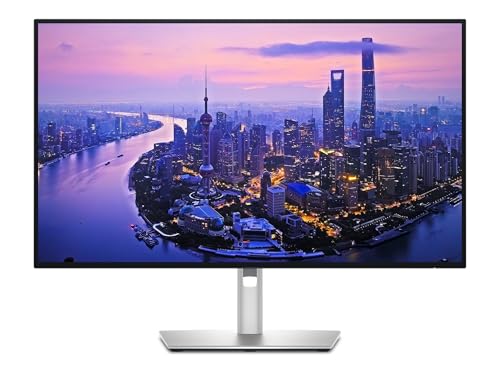
- 27-INCH 4K UHD DISPLAY: Delivers stunning 3840×2160 resolution with exceptional color accuracy and sharpness, providing …
- THUNDERBOLT HUB CONNECTIVITY: Features a built-in Thunderbolt hub that supports daisy-chaining, high-speed data transfer…
- ULTRASHARP COLOR PERFORMANCE: Covers 100% of sRGB and Display P3 color spaces with factory-calibrated accuracy, ensuring…
27-inch IPS Black 4K at 120 Hz, Thunderbolt 4 hub with high power delivery (up to 140 W on many configs), excellent contrast, factory calibration, full connectivity including Ethernet. Ideal if you want maximum sharpness plus a true single-cable workstation for a modern laptop. Higher price but reduces desk clutter dramatically.
Solid budget-friendly 27-inch 4K option

- Incredible Images: The CB272K 27″ monitor with 3840 x 2160 UHD resolution in a 16:9 aspect ratio presents stunning, high…
- AMD FreeSync Technology: Say “goodbye” to stuttering and tearing. With AMD FreeSync, the monitor’s frames are synced wit…
- New Depths of Color Accuracy: A color gamut is a subset of colors, such as those in a specific color space. The gamut of…
27-inch IPS 3840×2160, USB-C 90 W, ergonomic stand, 99% sRGB. Good entry into sharp 4K text for office or creative tasks when you want the density without premium branding.
For ultrawide multitasking, current Samsung ViewFinity or similar 34-inch 3440×1440 models appear regularly on Amazon—search for verified stock and confirm the exact ASIN before buying. Always prefer IPS or high-quality VA with good viewing angles for work.
If you need a dual-monitor arm or riser to pair with any of these, our dedicated guide covers current Amazon options that handle 27- and 32-inch weights safely.
Practical Decision Framework

- Measure your desk depth and preferred viewing distance.
- Decide primary tasks: pure text/spreadsheets → 27″ 1440p; detail work or maximum clarity → 27″ or 32″ 4K; maximum horizontal space → ultrawide.
- Check laptop ports. USB-C or Thunderbolt users should prioritize power delivery.
- Prioritize ergonomic stand or plan for a separate arm.
- Confirm the live Amazon listing still matches the model and is in stock.
Most remote workers and office professionals land happily on a single 27-inch 1440p or 4K panel. Dual 27-inch setups remain extremely effective and often more flexible than one large screen.
FAQ
What size monitor is best for office work?
27 inches is the most common sweet spot. It balances space and comfort on typical desks.
Is 1440p or 4K better for work?
1440p on 27 inches needs almost no scaling and feels natural. 4K is sharper but usually requires 125–150% scaling. Choose based on how much you value pixel-level clarity versus simplicity.
Can I use a 32-inch monitor for work?
Yes, especially at 4K. Make sure your desk is deep enough and you sit far enough back so the edges stay in comfortable view.
Do I need 120 Hz or higher for office work?
Not required, but 100–120 Hz makes everyday motion feel smoother. 60 Hz is still perfectly usable.
Is USB-C power delivery worth it?
If you use a laptop, yes. One cable for video + charging + data cleans up the desk significantly.
What PPI is good enough for text work?
Around 100–110 PPI is comfortable for most people at desk distance. 140+ PPI looks exceptionally sharp.
Should I buy two monitors or one ultrawide?
Two separate screens give more flexibility and easier multi-source use. Ultrawide removes the center bezel and feels more immersive for single-app heavy workflows.
How important is the stand?
Very. Height adjustment alone reduces neck strain over long days. Pivot (portrait mode) helps with long documents or code.
Conclusion
Monitor size and resolution are not independent choices. Match them so pixel density stays in the comfortable 100–165 PPI range for your viewing distance, and you get sharp text plus useful workspace without fighting scaling or soft edges.
For most people doing everyday knowledge work in 2026, a 27-inch 1440p or 27-inch 4K panel hits the practical balance. Step up to 32-inch 4K or ultrawide only when your tasks and desk space clearly demand the extra physical room.
Check the current Amazon listings linked above—stock and pricing move quickly. Pair the right panel with a solid stand or arm, set brightness and blue-light settings for your environment, and your daily work will feel noticeably easier on the eyes and more productive.
As an Amazon Associate I earn from qualifying purchases.

MD.HASAN is an experienced SEO expert and amazon products review writer passionate about helping people find right products on amzon for buy without confusion. With 4 years of hands-on experience in content strategy and search engine optimization, he specializes in writing SEO-friendly blog posts that rank, engage, and convert.