
Affiliate disclosure: As an Amazon Associate, Tech Rig Review earns from qualifying purchases. Links on this page may be affiliate links, at no extra cost to you.
Modern laptops are becoming thinner and more portable, but this design often comes with fewer connection ports. Many newer laptops include only a small number of USB-C ports, making it difficult to connect multiple accessories at the same time. If you regularly use an external monitor, keyboard, mouse, flash drive, external hard drive, or other peripherals, you may quickly run out of available connections.
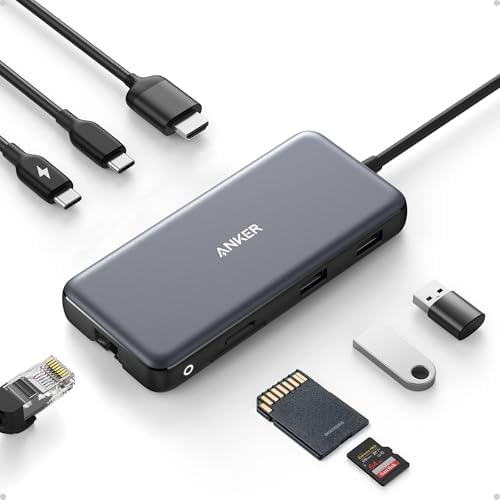
This is where a USB-C hub becomes useful. It allows you to expand a single USB-C connection into several additional ports, helping you connect multiple devices without constantly switching cables. Depending on the model, a hub may provide USB-A ports, HDMI output, SD card readers, Ethernet connectivity, and USB-C Power Delivery.
However, not every USB-C hub offers the same features or performance. Some are designed for simple everyday accessories, while others support external displays, faster file transfers, and laptop charging. Choosing the wrong one can result in missing features, slower data transfers, or compatibility problems.
In this guide to the 10 Best USB-C Hubs on Amazon, we’ll explain the important features to compare, the different types available, and what to consider before purchasing. Whether you need a compact travel accessory or a versatile hub for your home office, understanding these factors can help you make a better decision.
10 Best USB-C Hubs on Amazon




Why Do You Need a USB-C Hub?
A USB-C hub helps expand the connectivity of laptops, tablets, and other compatible devices. Instead of relying on one or two built-in ports, you can connect several accessories through a single connection.
This is particularly useful for modern laptops that prioritize portability over having numerous physical connections.
For example, you might want to connect an external monitor while using a wireless mouse receiver, keyboard, USB flash drive, and external storage device. A suitable hub makes it easier to manage these accessories without repeatedly unplugging and reconnecting them.
USB-C hubs are also helpful for people who frequently move between different workspaces. Rather than carrying several individual adapters, you can use one compact accessory to connect your essential devices.
Main Benefits of Using a USB-C Hub
1. Expand Your Available Ports
The biggest advantage is having more connection options. A single USB-C port can provide access to several additional connections, depending on the hub’s design.
This makes it easier to use older USB accessories alongside newer USB-C devices.
2. Connect an External Monitor
Many USB-C hubs include HDMI or DisplayPort connections for external monitors. This can help create a more comfortable workspace with additional screen space for multitasking.
However, your laptop’s USB-C port must support video output through DisplayPort Alt Mode, USB4, or a compatible Thunderbolt connection. A USB-C connector alone does not guarantee monitor support.
3. Charge Your Laptop While Working
Some hubs include USB-C Power Delivery passthrough. This feature allows you to connect a compatible charger to the hub and deliver power to your laptop while using its other connections.
It can reduce cable clutter and make a desk setup more convenient.
4. Transfer Files More Conveniently
USB-C hubs with high-speed USB ports make it easier to connect external SSDs, flash drives, and other storage devices.
This is especially useful for photographers, video editors, students, and professionals who regularly move large files between devices.
5. Improve Your Workspace Organization
A hub can reduce the number of separate adapters and connections required for everyday work. Instead of managing several accessories individually, you can connect many of them through one central device.
Different Types of USB-C Hubs
Before choosing a model, it helps to understand the common types available.
Basic USB-C Hubs
Basic hubs are designed to expand the number of USB connections. They are suitable for connecting keyboards, mice, flash drives, printers, and other everyday accessories.
These are generally useful for people who do not need advanced display or networking features.
Multiport USB-C Hubs
Multiport hubs combine several different connections in one device. Depending on the design, they may include USB-A, USB-C, HDMI, SD card readers, and charging passthrough.
They are a practical choice for students, office workers, and people who use several accessories.
HDMI USB-C Hubs
These hubs are designed for users who regularly connect external displays. They typically include an HDMI connection alongside additional USB ports.
Before buying one, check its supported resolution and refresh rate. For example, 4K at 30Hz and 4K at 60Hz provide different viewing experiences.
USB-C Hubs with Ethernet
Some models include an Ethernet port for wired internet connectivity. This can be useful for desktop workstations, offices, online meetings, and situations where a stable wired connection is preferred.
Compact Travel Hubs
Travel hubs focus on portability. They are generally lightweight and small enough to fit inside a laptop bag.
They are useful for people who work remotely, travel frequently, or regularly switch between office and home environments.
How to Choose the Best USB-C Hub
Choosing the right hub is not simply about finding a model with the largest number of ports. You should consider your devices, everyday requirements, and the features you actually plan to use.
1. Check the Number and Types of Ports
Start by identifying which accessories you regularly connect to your computer.
Common connections include:
- USB-A for keyboards, mice, flash drives, and other accessories.
- USB-C for compatible devices and data connections.
- HDMI for external monitors and televisions.
- SD and microSD slots for memory cards.
- Ethernet for wired internet connectivity.
- Audio connections for compatible headphones and microphones.
If you primarily use basic accessories, a smaller hub may be sufficient. If you connect monitors, external storage, and memory cards, a more versatile option may be worthwhile.
Avoid choosing a hub based only on its advertised port count. Check what each port actually supports.
2. Understand USB Data Transfer Speeds
Data transfer speed is important if you regularly work with external storage devices.
Different USB standards offer different maximum transfer rates:
| USB standard | Maximum theoretical speed |
|---|---|
| USB 2.0 | 480 Mbps |
| USB 5Gbps | 5 Gbps |
| USB 10Gbps | 10 Gbps |
| USB 20Gbps | 20 Gbps |
| USB4 40Gbps | 40 Gbps |
These are theoretical interface speeds, not guaranteed real-world transfer speeds.
For basic accessories such as keyboards and mice, standard USB connections are generally sufficient. However, if you regularly transfer large video files or work with external SSDs, faster connections can make a noticeable difference.
Also remember that the available bandwidth may be shared between connected devices.
3. Check HDMI Resolution and Refresh Rate
If you plan to connect an external monitor, pay close attention to the hub’s display specifications.
Some models support Full HD output, while others advertise 4K or higher resolutions.
You should check both resolution and refresh rate. For example, 4K at 60Hz generally provides a smoother desktop experience than 4K at 30Hz.
Also verify your laptop’s video output capabilities. The computer, hub, cable, and monitor must all support the display configuration you want.
If you need two external monitors, check whether the hub supports dual-display output and whether your operating system supports the intended arrangement.
4. Look for USB-C Power Delivery
Power Delivery, commonly called USB-C PD, allows compatible devices to receive power through a USB-C connection.
This is an important feature if you want to charge your laptop while using the hub.
Check the maximum supported input power and the actual power delivered to the laptop. Some of the available power may be used by the hub itself.
For example, a hub advertising 100W input does not necessarily deliver the full 100W to your laptop.
Make sure the hub’s charging capacity is appropriate for your laptop and that you use a compatible charger.
5. Consider Ethernet Connectivity
If you work from home or regularly use a wired network, an Ethernet connection can be a useful addition.
A Gigabit Ethernet port supports a theoretical network speed of up to 1Gbps, which is sufficient for many home and office setups.
Some advanced models offer faster networking options. However, you should consider whether your router, network equipment, and internet connection can take advantage of those speeds.
6. Check SD and microSD Card Support
Photographers, content creators, and video editors may benefit from a hub with built-in memory card readers.
These connections allow you to transfer files from compatible cameras, drones, and other devices without carrying a separate card reader.
Check whether the hub supports standard SD cards, microSD cards, or both. Also look at the supported card speed standard if fast media transfers are important to your workflow.
7. Consider Build Quality and Portability
A USB-C hub is an accessory you may connect and disconnect regularly. Build quality can therefore affect its long-term usefulness.
Consider the housing material, cable quality, port spacing, and overall construction.
Aluminum housings are common in compact hubs, while other models use plastic designs.
If you travel frequently, prioritize a lightweight design that fits comfortably inside your laptop bag. For a permanent desk setup, a larger hub with more connections may be more convenient.
8. Verify Device Compatibility
Compatibility is one of the most important things to check before purchasing.
Not every USB-C port supports the same features. Some provide basic data transfer only, while others support charging, external displays, USB4, or Thunderbolt.
Check your laptop’s specifications and the hub’s compatibility information.
MacBooks, Windows laptops, Chromebooks, tablets, and smartphones can have different hardware and operating-system limitations. Also verify whether special drivers are required for advanced display features.
What to Consider Before Buying a USB-C Hub
Before making your final decision, think about how you plan to use the hub.
Your everyday devices: Make a list of the accessories you regularly connect. This helps you avoid buying unnecessary ports or choosing a hub that lacks an important connection.
Your laptop’s charging requirements: Check how much power your laptop needs and whether the hub supports sufficient Power Delivery.
Your monitor setup: Confirm the supported display resolution, refresh rate, and number of external monitors.
Your storage requirements: If you use external SSDs or transfer large files, prioritize faster USB connections.
Your budget: More ports and advanced features can increase the price. Choose a hub that meets your actual requirements instead of paying for features you will rarely use.
Warranty and customer support: Check the seller, warranty information, return policy, and customer feedback before ordering.
Common Mistakes to Avoid When Buying a USB-C Hub
One common mistake is assuming every USB-C port supports video output. The connector’s shape does not tell you which features the laptop supports.
Another mistake is overlooking charging limitations. A hub may support Power Delivery passthrough but still deliver less power than your laptop requires.
You should also avoid choosing a hub based only on its number of connections. A device with many ports may not provide the data speeds or display capabilities you need.
Finally, don’t ignore cable quality and compatibility. A suitable hub still requires compatible cables, chargers, and connected devices to achieve its advertised capabilities.
Frequently Asked Questions
1. What is a USB-C hub used for?
A USB-C hub expands the connectivity of a compatible laptop, tablet, or other device. It can provide additional USB ports, HDMI output, memory card readers, Ethernet, and charging passthrough.
2. Do all USB-C hubs support HDMI?
No. Only hubs with compatible video-output hardware provide HDMI functionality. Your computer’s USB-C port must also support an appropriate video technology, such as DisplayPort Alt Mode or Thunderbolt.
3. Can a USB-C hub charge a laptop?
Some USB-C hubs support Power Delivery passthrough. These allow a compatible charger to supply power to a laptop through the hub. Check the supported wattage and your laptop’s charging requirements.
4. Are USB-C hubs compatible with MacBooks?
Many USB-C hubs work with compatible MacBook models. However, available features can vary depending on the MacBook’s ports, hardware, and macOS support. Always check compatibility before purchasing.
5. Is a USB-C hub better than a docking station?
A USB-C hub is generally smaller and more portable, making it suitable for everyday connections. A docking station often provides more ports, additional power, and advanced display or networking capabilities for a permanent workstation.
6. Can I connect multiple devices to one USB-C hub?
Yes. Most multiport hubs allow you to connect several accessories simultaneously. However, total bandwidth and available power may be shared between connected devices.
7. What should I look for in a USB-C hub for a laptop?
Consider the number of USB ports, display support, Power Delivery, data transfer speeds, Ethernet, card readers, build quality, and compatibility with your laptop.
Final Thoughts
A USB-C hub can make your laptop more versatile by providing the connections needed for everyday work, entertainment, and productivity. However, the right choice depends on your specific requirements rather than simply the number of available ports.
For everyday use, focus on reliable USB connections and a compact design. If you work with external monitors, prioritize compatible HDMI or DisplayPort output. For professionals who regularly transfer large files, faster data connections and memory card support may be more important.
Before purchasing, compare the available features, check your laptop’s USB-C capabilities, and make sure the hub supports the accessories you plan to connect.
Explore the 10 Best USB-C Hubs on Amazon featured in this guide and compare their available ports, charging capabilities, transfer speeds, and compatibility to find an option that fits your setup.

MD.HASAN is an experienced SEO expert and amazon products review writer passionate about helping people find right products on amzon for buy without confusion. With 4 years of hands-on experience in content strategy and search engine optimization, he specializes in writing SEO-friendly blog posts that rank, engage, and convert.


